> For the complete documentation index, see [llms.txt](https://docs.groundcover.com/llms.txt). Markdown versions of documentation pages are available by appending `.md` to page URLs; this page is available as [Markdown](https://docs.groundcover.com/collect-data/byoc/setup-byoc-with-aws.md).
# Setup BYOC with AWS
**BYOC** is our recommended setup option, in which our platform's infrastructure is installed in a cloud environment owned by your organization, allowing you to delegate its entire setup, update, and maintenance to groundcover.
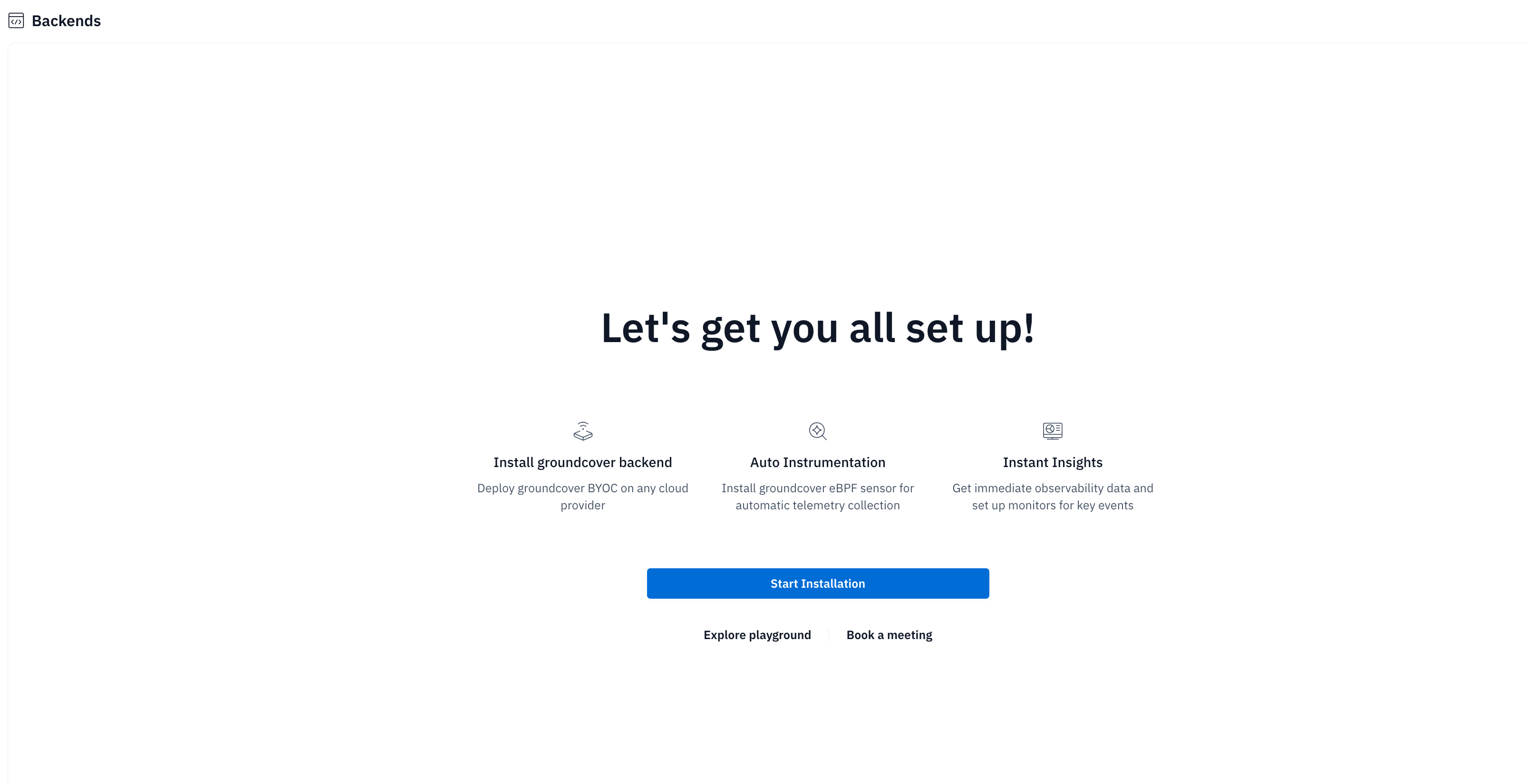
To install groundcover BYOC, sign up to [groundcover Console](https://console.groundcover.com) and start the installation process.
## Installation steps
BYOC requires to create an isolated account within your AWS organization, that will be managed by groundcover's control plane and will establish, configure, and maintain the infrastructure and workloads within the account. These include AWS VPC, S3, EKS, LB, etc.
groundcover BYOC can be deployed using one the following configurations:
{% hint style="info" %}
In line with AWS’s recommended unit of containerization, the default and preferable option is to deploy in a dedicated AWS account. This acts as an identity, resources, quota and access management isolation boundary.
{% endhint %}
* **Option A:**** Creating a new, dedicated sub-account**
We recommend naming the account \[`groundcover-byoc`] and placing the account in `OU=Infrastructure/OU=Managed`. For additional information please see [Establishing your best practice AWS environment](https://aws.amazon.com/organizations/getting-started/best-practices/) *(external link to a page on the AWS website)*.
* **Option B:**** Use an existing AWS account**
If you prefer using a single account approach, BYOC can also be deployed into an existing account, running alongside existing production workloads in your existing AWS account. To limit access and prevent resource collusion, we implement a “scoping territory” approach using ABAC tags for access control and VPC subnets for network control.
Once the account is ready, start the installation process through the Console. The entire process should run for about 20-30 minutes. Upon completion, you will see a Go to App button that will lead you to your dedicated workspace.
### Troubleshooting
There are 2 types of potential problems you may encounter in the installation process:
1. **Validation issues** - before kicking off the installation process, groundcover will verify that the provided role has the correct permissions. In case of validation issues, please expand the relevant section and address the validation issue. After the issue is fixed, click on Validate again to ensure all the permissions were granted properly.

2. **Non-blocker validations -** some of the validations are marked as Non-blocker. In these cases, users can ignore the message and continue with the installation. As a result, specific features might not be enabled for the users, but they can enable it in the future. The below list elaborates on these features:
1. **Bedrock Access** - groundcover leverages Bedrock to enable the Agent Mode. Read more about it [here](/automate/agent-mode.md).
3. **Deployment issues** - once the installation process has started, we may encounter issues while attempting to install one or more components. These issues will appear in the backends main screen.\
\
If the issues persist, [reach out to our team](https://www.groundcover.com/join-slack).
### Add monitoring to your environment
Once groundcover backend is deployed, the final step is to add data sources to monitor your environment, such as deploying our sensors to monitor your clusters or add cloud providers. To do so, go to the [data sources page](https://app.groundcover.com/data-sources) and select the relevant data sources for your needs.
***
---
# Agent Instructions
This documentation is published with GitBook. GitBook is the documentation platform designed so that both humans and AI agents can read, navigate, and reason over technical content effectively. Learn more at gitbook.com.
## Querying This Documentation
If you need additional information that is not directly available in this page, you can query the documentation by asking a question.
Perform an HTTP GET request on the following URL with the `ask` and `goal` query parameters:
```
GET https://docs.groundcover.com/collect-data/byoc/setup-byoc-with-aws.md?ask=&goal=
```
`ask` is the immediate question: it should be specific, self-contained, and written in natural language.
`goal` is what the user is ultimately trying to achieve, the reason they need the answer. Sharing it helps GitBook give you a better, more relevant answer. A goal is most helpful when it describes the outcome the user wants rather than restating the question. For example, with `ask=how do I create an API token`, a goal like `automate deployments from our CI pipeline` lets GitBook tailor the answer to that use case.
The response will contain a direct answer to the question and relevant excerpts and sources from the documentation.
Use this mechanism when the answer is not explicitly present in the current page, you need clarification or additional context, or you want to retrieve related documentation sections.