> For the complete documentation index, see [llms.txt](https://docs.groundcover.com/llms.txt). Markdown versions of documentation pages are available by appending `.md` to page URLs; this page is available as [Markdown](https://docs.groundcover.com/automate/agent-mode/configuring-settings.md).
# Configuring Settings
How to configure Agent Mode access, LLM providers, models, instructions, and budgets for your workspace
Workspace administrators control Agent Mode availability, organization-wide instructions, and budget settings from the Settings page.
## Accessing AI Settings
Navigate to **Settings > AI & Agents** in the groundcover UI. The page is split into three sections:
* **Management**: configure Agent Mode availability and its LLM provider per backend, including enabled models
* **Org Instructions**: set backend-wide guidance the Agent follows for everyone
* **Cost Control**: set monthly spending limits at the organization and per-user level
{% hint style="info" %}
**Admin role required.** Only users with the Admin role can view and modify AI settings. If you don't see the **AI & Agents** option in the Settings sidebar, contact your workspace administrator.
{% endhint %}
## Management
Expand a backend to enable or disable Agent Mode and choose its LLM provider. These settings are independent for each backend.
* **Enabled:** The Agent panel, keyboard shortcuts, and other AI features are available.
* **Disabled:** The Agent panel and other AI features are hidden, and Agent keyboard shortcuts are inactive.
### Choose an LLM provider
| Provider | When to use it |
| --------------------------- | --------------------------------------------------------------------------------------------------------------------------------------------------------------------------------------------------------------------- |
| **Native Cloud Provider** | Use the LLM service included with your deployment, such as AWS Bedrock, Google Cloud Vertex AI, or Microsoft Foundry. See [Requirements & Compatibility](/automate/agent-mode/requirements.md#supported-deployments). |
| **Anthropic Key** | Send requests directly to Anthropic and bill usage to your Anthropic account. |
| **Custom Anthropic Domain** | Send requests to an Anthropic-compatible proxy or gateway, such as LiteLLM, Bifrost, or another service that implements the Anthropic Messages API. |
## Manage models
{% hint style="info" %}
**Availability:** Model management is currently available only in workspaces with an **Amazon Bedrock** deployment. Other workspaces use **Claude Sonnet 4.6** by default.
{% endhint %}
Choose from a predefined list checked against your provider configuration, or enter a model ID supported by your provider account.
{% hint style="info" %}
**Bedrock model access emails:** groundcover checks model access with a short greeting and reply while keeping cost to a minimum. These checks can enable access in your **AWS account**. AWS may send a **Marketplace subscription notification** when a model is first enabled in that account, whether by you or groundcover.
These checks do not change your workspace's **Enabled models** or **Default model**. To make an additional model available for Agent conversations, add it under **Enabled models** and select **Save**.
{% endhint %}
Before you begin, review the [Bedrock access requirements](#bedrock-model-access-and-permissions).
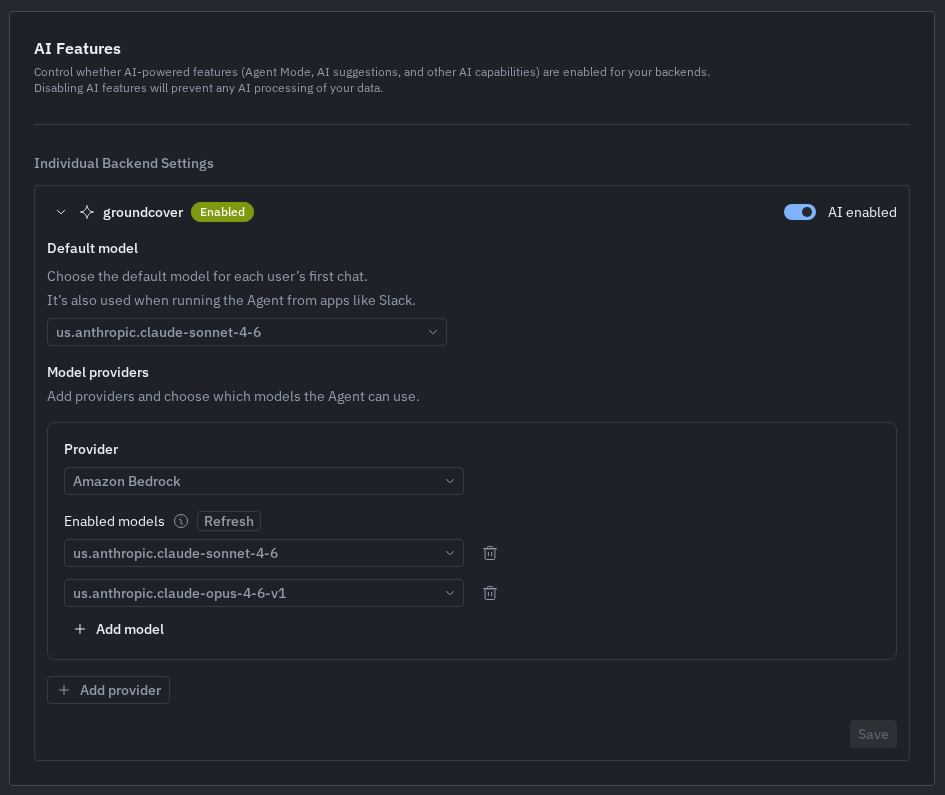
1. Go to **Settings > AI & Agents > Management**, find your backend, and make sure **AI enabled** is turned on.
2. Expand the backend. Under **Model providers**, find the provider you want to configure.
3. Under **Enabled models**, select **Add model**. Choose a model from the list, or enter its ID in **Search models or enter an ID**.
4. Choose an enabled model in **Default model**.
5. Select **Save** to apply your changes.
Enable models for a backend and choose its default model.
Use the remove icon beside a model to remove it. Keep at least one model enabled.
### Bedrock model access and permissions
Before adding a Bedrock model:
* Confirm that the model is available in your AWS account and Region, and complete any required provider access steps, such as Anthropic's first-time use case submission and AWS Marketplace subscription. See [AWS model access requirements](https://docs.aws.amazon.com/bedrock/latest/userguide/model-access.html).
* Ensure the IAM role used by your groundcover deployment permits `bedrock:InvokeModel` and `bedrock:InvokeModelWithResponseStream` for the selected model and, where applicable, its inference profile. Inference profiles also require `bedrock:GetInferenceProfile`. See [AWS inference prerequisites](https://docs.aws.amazon.com/bedrock/latest/userguide/inference-prereq.html).
* Ask your AWS administrator to check **Service Control Policies (SCPs)** as well as IAM policies. An explicit deny cannot be overridden by enabling the model in groundcover. For geographic cross-Region inference, policies must allow all destination Regions in the inference profile; global profiles have different Region-policy requirements. See [AWS cross-Region inference requirements](https://docs.aws.amazon.com/bedrock/latest/userguide/cross-region-inference.html).
### Backend default and personal selection
The backend's **Default model** is used for new [Agent conversations in Slack](/automate/connectors/slack/slack-agent.md) and by [MCP tools that invoke the groundcover Agent](/automate/groundcover-mcp/mcp-tools-reference.md#groundcover-agent-async-tools). In the web app, it is used when a user has no remembered choice or their selected model is no longer enabled. Changing the default preserves personal and web chat selections while their model remains enabled. See [Choose a model](/automate/agent-mode/getting-started.md#choose-a-model) for details.
## Anthropic API key
You can bring your own Anthropic API key and configure Agent Mode to send inference requests directly to Anthropic. The provider selection and key are configured separately for each backend.
To configure an Anthropic API key:
1. Go to **Settings > AI & Agents > Management**.
2. Find the backend you want to configure and make sure **AI enabled** is turned on.
3. Expand the backend settings.
4. Under **Choose your LLM Provider**, select **Anthropic Key**.
5. Enter your Anthropic API key.
6. Select **Save**.
groundcover validates the key before activating it. A valid key takes effect without restarting the backend. If validation fails, the existing provider configuration remains active.
After the key is saved, the API key field displays a masked value. To rotate the key, expand the backend settings, select **Edit** next to the API key field, enter the replacement key, and select **Save**.
To return to the LLM provider configured for your deployment, select **Native Cloud Provider** and then select **Save**. A native provider must already be configured for the backend.
See [Requirements & Compatibility](/automate/agent-mode/requirements.md#anthropic-api-key) for deployment support and [Privacy & Security](/automate/agent-mode/privacy-and-security.md#llm-provider) for data handling and key storage details.
## Configure a custom Anthropic domain
Use **Custom Anthropic Domain** to route Claude traffic through an internal gateway, centralized model proxy, or another Anthropic-compatible endpoint.
Before you begin, make sure the proxy:
* Is accessible from your groundcover deployment
* Implements the Anthropic Messages API, including streaming responses
* Supports API key authentication
To configure the endpoint:
1. Go to **Settings > AI & Agents > Management**.
2. Expand the backend you want to configure.
3. Select **Custom Anthropic Domain** under **Choose your LLM Provider**.
4. Enter the proxy's Anthropic base URL in **Endpoint URL**, including any required path.
* The `/v1/messages` path is added automatically.
* Use HTTPS for external endpoints. Use HTTP only for internal endpoints protected by authenticated encryption, such as a TLS service mesh.
* Use a URL without query parameters or fragments.
5. Enter the API key accepted by the proxy.
6. Click **Save**.
For example, depending on how your proxy is exposed, the base URL could be:
```
https://litellm.example.com
https://bifrost.example.com/anthropic
https://litellm.ai-gateway.svc.cluster.local:4000
```
{% hint style="info" %}
When you save, groundcover makes a model request to validate the endpoint, API key, and model access before applying the change. If validation fails, the existing provider remains active. Successful validation confirms access only at save time. Later availability depends on the proxy and its upstream provider.
{% endhint %}
## Org Instructions
The Org Instructions section lets admins set guidance the Agent follows in Agent Mode for everyone in the selected backend. Use Org Instructions for broad defaults that should apply across the team, such as:
* Preferred terminology and service names
* Default response structure
* Systems or namespaces the Agent should prioritize
* Organization-wide investigation or escalation expectations
Org Instructions are included alongside each user's [Personal Instructions](/automate/agent-mode/getting-started.md#personal-instructions) and any active [Skills](/automate/agent-mode/skills.md). Keep Org Instructions broad and stable; use Organizational Skills for reusable runbooks or workflows that should activate only for specific prompts.
To update Org Instructions, edit the text and click **Save**. To remove them, clear the editor and save the empty value.
## Cost Control
The Cost Control section lets admins set monthly spending limits. See [Cost Management](/automate/agent-mode/cost-management.md) for full details on configuring organization budgets, default per-user budgets, and per-user overrides.
## Related
* [Getting Started](/automate/agent-mode/getting-started.md#personal-instructions) - Configure Personal Instructions for your own Agent conversations
* [Skills](/automate/agent-mode/skills.md) - Create personal or Organizational Skills for reusable Agent guidance
* [Cost Management](/automate/agent-mode/cost-management.md) - Set monthly spending limits at the organization and per-user level
* [Privacy & Security](/automate/agent-mode/privacy-and-security.md) - Data handling and access control details
---
# Agent Instructions
This documentation is published with GitBook. GitBook is the documentation platform designed so that both humans and AI agents can read, navigate, and reason over technical content effectively. Learn more at gitbook.com.
## Querying This Documentation
If you need additional information that is not directly available in this page, you can query the documentation by asking a question.
Perform an HTTP GET request on the following URL with the `ask` and `goal` query parameters:
```
GET https://docs.groundcover.com/automate/agent-mode/configuring-settings.md?ask=&goal=
```
`ask` is the immediate question: it should be specific, self-contained, and written in natural language.
`goal` is what the user is ultimately trying to achieve, the reason they need the answer. Sharing it helps GitBook give you a better, more relevant answer. A goal is most helpful when it describes the outcome the user wants rather than restating the question. For example, with `ask=how do I create an API token`, a goal like `automate deployments from our CI pipeline` lets GitBook tailor the answer to that use case.
The response will contain a direct answer to the question and relevant excerpts and sources from the documentation.
Use this mechanism when the answer is not explicitly present in the current page, you need clarification or additional context, or you want to retrieve related documentation sections.