> For the complete documentation index, see [llms.txt](https://docs.groundcover.com/llms.txt). Markdown versions of documentation pages are available by appending `.md` to page URLs; this page is available as [Markdown](https://docs.groundcover.com/automate/agent-mode/getting-started.md).

# Getting Started

Learn how to interact with groundcover Agent Mode

No setup required - the Agent is available directly in the groundcover UI.

## Opening the Agent

Click the **Agent** icon in the sidebar or press **Ctrl+Cmd+A** (Mac), **Ctrl+Win+A** (Windows), or **Ctrl+Super+A** (Linux) to toggle the chat panel. The panel stays open as you navigate the platform so you can ask questions in context.

Press **Cmd+Shift+E** to expand the Agent to full screen for longer investigations.

## Choose a model

{% hint style="info" %}
**Availability:** The chat model picker is currently available only in workspaces with an **Amazon Bedrock** deployment.
{% endhint %}

In the groundcover web app, click the model name in the chat input area, open **Model**, and select one of the models enabled by your administrator. You can change models between messages in the same conversation.

<figure><img src="https://2771001740-files.gitbook.io/~/files/v0/b/gitbook-x-prod.appspot.com/o/spaces%2FUHgqKYgCiRKdOpWQdi52%2Fuploads%2Fgit-blob-70267018920a68337e8695731839c4d020a156bf%2Fagent-model-picker.png?alt=media" alt="Agent model picker showing Claude Sonnet 4.6, Claude Opus 4.6, Reasoning effort, and Manage models"><figcaption><p>Choose a model from the chat input menu. Reasoning effort is available for supported models.</p></figcaption></figure>

When the selected model and provider offer multiple effort levels, use **Reasoning effort** in the same menu to choose how much reasoning the model uses. Your choice is remembered with your model selection.

Only admins can change the enabled models or backend default. Admins can select **Manage models** in the picker to open **Settings > AI & Agents > Management** with the current backend expanded. Models must also be accessible in the provider account: for Bedrock, this includes model-access requirements and any IAM or Service Control Policy (SCP) restrictions. See [Manage models](/automate/agent-mode/configuring-settings.md#manage-models) for setup and [Bedrock model access and permissions](/automate/agent-mode/configuring-settings.md#bedrock-model-access-and-permissions) for prerequisites.

Model selection in the web app follows these rules:

* **New chats** use your last model choice for that workspace and backend, remembered in your browser, while it remains enabled. If you have no remembered choice, the backend default is used.
* **Existing chats** use their own saved model selection when available; otherwise, they use your remembered choice.
* If the selected model is no longer enabled, the picker falls back to the backend default, or the first enabled model if no default is available.

The backend's **Default model** is also used for new [Agent conversations in Slack](/automate/connectors/slack/slack-agent.md) and by [MCP tools that invoke the groundcover Agent](/automate/groundcover-mcp/mcp-tools-reference.md#groundcover-agent-async-tools). Selecting a model in the web app does not change the backend default.

## Template Cards

When you start a new conversation, the Agent shows **template cards** - pre-built prompts covering common scenarios like error investigation, performance analysis, infrastructure health, and more. Click a card, fill in the placeholders for your specific workload or namespace, and the Agent starts working.

## @Mentions

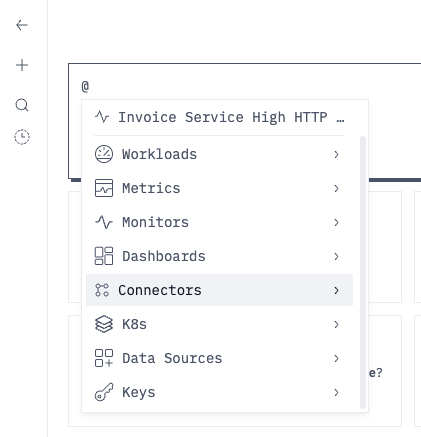
Type **@** in the chat input to give the Agent precise context. The picker supports:

| Mention          | What it adds                                                                                                                           |
| ---------------- | -------------------------------------------------------------------------------------------------------------------------------------- |
| **Workloads**    | A workload and its namespace, cluster, and environment context; use this category for DaemonSets                                       |
| **Metrics**      | A specific metric                                                                                                                      |
| **Monitors**     | A monitor configuration                                                                                                                |
| **Dashboards**   | A dashboard and its widgets                                                                                                            |
| **Connectors**   | A connected external system whose tools the Agent can use                                                                              |
| **K8s**          | **Clusters**, **Namespaces**, **Nodes**, **Deployments**, **Pods**, **Stateful Sets**, **Replica Sets**, **Cron Jobs**, and **Jobs**   |
| **Data Sources** | A configured data source                                                                                                               |
| **Keys**         | An attribute key such as `service.name`; select a key and then a value to add a precise key:value pair such as `service.name:checkout` |

For a metric mention, choose **Metrics** and search by name. For a key:value mention, choose **Keys**, select the key, and then select its value.

Recently mentioned entities appear at the top for quick access. You can search by name or click a category header to filter.

<figure><img src="https://2771001740-files.gitbook.io/~/files/v0/b/gitbook-x-prod.appspot.com/o/spaces%2FUHgqKYgCiRKdOpWQdi52%2Fuploads%2Fgit-blob-66f92af33800115a96e3cc2d67659308b4bece7d%2Fagent-mention-picker.png?alt=media" alt="Agent mention picker with supported context categories"><figcaption><p>Type @ to select a resource, connector, data source, key, or key:value pair.</p></figcaption></figure>

> Investigate errors in @checkout-service Compare latency between @api-gateway and @auth-service Check deployment failures with @GitHub for @service.name:checkout

When you mention a resource, its full context (such as namespace, cluster, and environment) is automatically included in your request. Key and key:value mentions work across the selected time range and available data sources.

## Add images

Attach images when visual context is faster to show than describe—for example, a screenshot of an error state, an architecture diagram, or a sketch for a new dashboard. Paste or drag an image into the prompt, or select **Add content → Add image**. Add a short instruction that tells the Agent what to inspect or create.

You can attach up to five static PNG, JPEG, or WebP images. Each image can be up to 3.75 MiB, with a 10 MiB combined limit per message.

To attach the groundcover page you are viewing, press **Ctrl+Cmd+S** (Mac), **Ctrl+Win+S** (Windows), or **Ctrl+Super+S** (Linux). The page snapshot is added to the prompt with its page context; review it and add your question before sending.

## Guide an active run or queue follow-ups

You do not need to wait for the Agent to finish before adding another prompt:

* Press **Enter** or click **Send** while a run is active to queue the prompt. Queued prompts run in order after the active run finishes.
* Press **Cmd+Enter** (Mac) or **Ctrl+Enter** (Windows/Linux) to steer the active run. The Agent incorporates the instruction at its next checkpoint without restarting the investigation.

Expand the queue to drag prompts into a different order, edit them, remove them, or **Push** one to interrupt the active run and run that prompt next.

## / for Skills

Type **/** in the chat input to attach a [Skill](/automate/agent-mode/skills.md) to your next message. A picker shows your Skills; select one and the Agent will follow its Instructions for that prompt.

The Agent also activates matching Skills automatically based on each Skill's *When to use* field - typing `/` is for when you want to force a specific Skill.

## Personal Instructions

Open **Instructions** from the Agent sidebar to set guidance the Agent should follow in every conversation you start. Use Personal Instructions for preferences that should always apply to your own Agent sessions, such as response format, naming conventions, query defaults, or systems you commonly prioritize.

Personal Instructions are different from Skills:

* **Personal Instructions** are always included in your conversations.
* **Skills** apply when you attach them with `/` or when the Agent matches their **When to use** field.
* **Organizational Skills** can be shared with the whole organization, while Personal Instructions stay scoped to your user.

To reset your Personal Instructions, clear the editor and save the empty value.

## Adding Context from the UI

While browsing the platform, you can send specific items directly to the Agent as context. Hover over any row in a table or open a detail drawer and click the **Add to context** button (star icon). The item and its full metadata are attached to your next Agent message.

This lets you point the Agent at exactly what you're looking at without copy-pasting IDs or describing it manually. For example, add a failing span to context and ask "why is this span erroring?" - the Agent already has all the details.

You can also **paste a groundcover URL** directly into the chat. The Agent extracts the full context from the URL - page, filters, time range, and entity.

## Exploring Tool Results

As the Agent works, each step it takes - every query, lookup, or action - appears as an expandable item in the conversation. Click on any step to see what the Agent actually did: the query it ran, the parameters it used, and the raw results it got back.

This gives you full transparency into the Agent's reasoning and lets you verify its work, reuse queries, or continue exploring the data yourself.

## Suggestions

After completing an investigation or answering a question, the Agent may offer **follow-up suggestions** - clickable buttons that continue the conversation in a useful direction. Click a suggestion to automatically send it as your next prompt.

## Conversations

The Agent maintains full context within a conversation. Ask follow-ups naturally:

> **You:** What's causing high latency in the payments service?
>
> **Agent:** *(investigates and reports findings)*
>
> **You:** Drill into the database calls specifically
>
> **Agent:** *(focuses on database spans)*
>
> **You:** Create a monitor for this

Previous conversations are saved in the sidebar. Start a new one with **Cmd+Shift+O**.

## Sharing & Forking

You can share any conversation with teammates. Right-click a conversation in the sidebar and select **Share** to copy a shareable link to your clipboard. Shared conversations have an expiration time.

When someone opens a shared link, they see a read-only view of the full conversation. To continue the investigation from where it left off, they can click **Continue this conversation** - this forks the conversation into a new, editable copy owned by them. The original shared conversation stays unchanged.

## Keyboard Shortcuts

| Shortcut                     | Action                      |
| ---------------------------- | --------------------------- |
| **Ctrl + Cmd/Win/Super + A** | Toggle the Agent panel      |
| **Ctrl + Cmd/Win/Super + S** | Capture the current page    |
| **Cmd/Ctrl + Shift + O**     | New conversation            |
| **Cmd/Ctrl + Shift + E**     | Expand to full screen       |
| **Cmd/Ctrl + Shift + S**     | Share conversation          |
| **@**                        | Open context mention picker |
| **Cmd/Ctrl + Enter**         | Steer an active run         |
| **Cmd/Ctrl + /**             | Show keyboard shortcuts     |


---

# Agent Instructions
This documentation is published with GitBook. GitBook is the documentation platform designed so that both humans and AI agents can read, navigate, and reason over technical content effectively. Learn more at gitbook.com.

## Querying This Documentation
If you need additional information that is not directly available in this page, you can query the documentation by asking a question.

Perform an HTTP GET request on the following URL with the `ask` and `goal` query parameters:

```
GET https://docs.groundcover.com/automate/agent-mode/getting-started.md?ask=<question>&goal=<user_goal>
```

`ask` is the immediate question: it should be specific, self-contained, and written in natural language.
`goal` is what the user is ultimately trying to achieve, the reason they need the answer. Sharing it helps GitBook give you a better, more relevant answer. A goal is most helpful when it describes the outcome the user wants rather than restating the question. For example, with `ask=how do I create an API token`, a goal like `automate deployments from our CI pipeline` lets GitBook tailor the answer to that use case.

The response will contain a direct answer to the question and relevant excerpts and sources from the documentation.

Use this mechanism when the answer is not explicitly present in the current page, you need clarification or additional context, or you want to retrieve related documentation sections.