Linear
Connect Linear to create and manage issues from monitor incidents, notification routes, and groundcover Agent Mode
The Linear connector links a Linear workspace to groundcover. After it is configured, you can:
Create a Linear issue directly from a monitor issue
Create and update Linear issues automatically through Notification Routes
Connect your personal Linear account so Agent Mode can use Linear MCP tools on your behalf
How the Linear connections work
Linear uses two related connections:
Organization connector
A groundcover workspace admin
Manual issue creation from monitor issues and automated issue management through Notification Routes
Personal connection
Each groundcover user
Linear MCP tools in Agent Mode, using that user's Linear permissions
The organization connector is required before users can create personal connections.
Prerequisites
Before you begin, make sure you have:
Admin permissions in groundcover
Permission to create an OAuth application in the Linear workspace you want to connect
Access to that Linear workspace during the OAuth approval flow
Set up the organization connector
Setting up the organization connector is a one-time process for each Linear workspace.
Step 1: Open the Linear connector setup
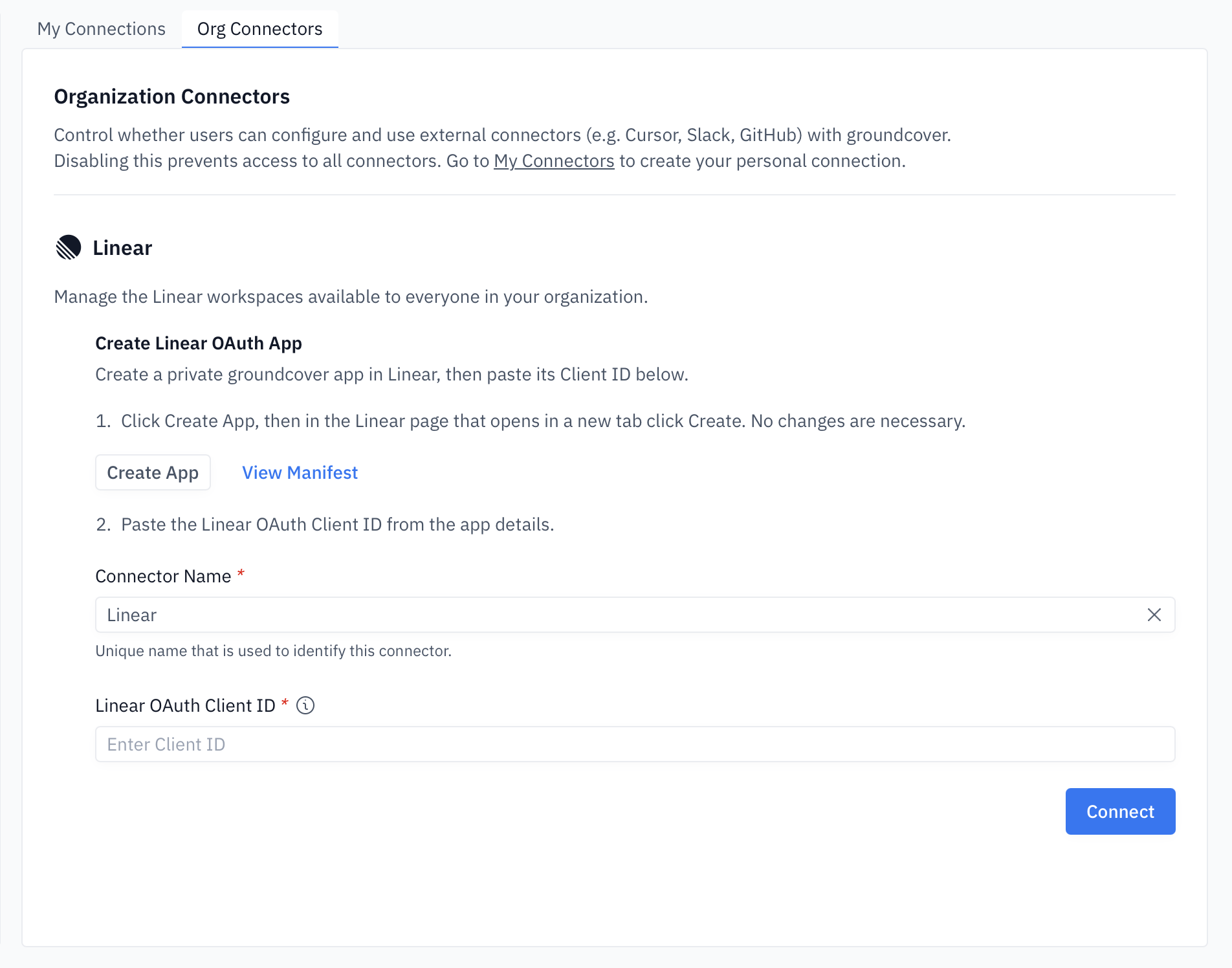
In groundcover, go to Integrations → Connectors.
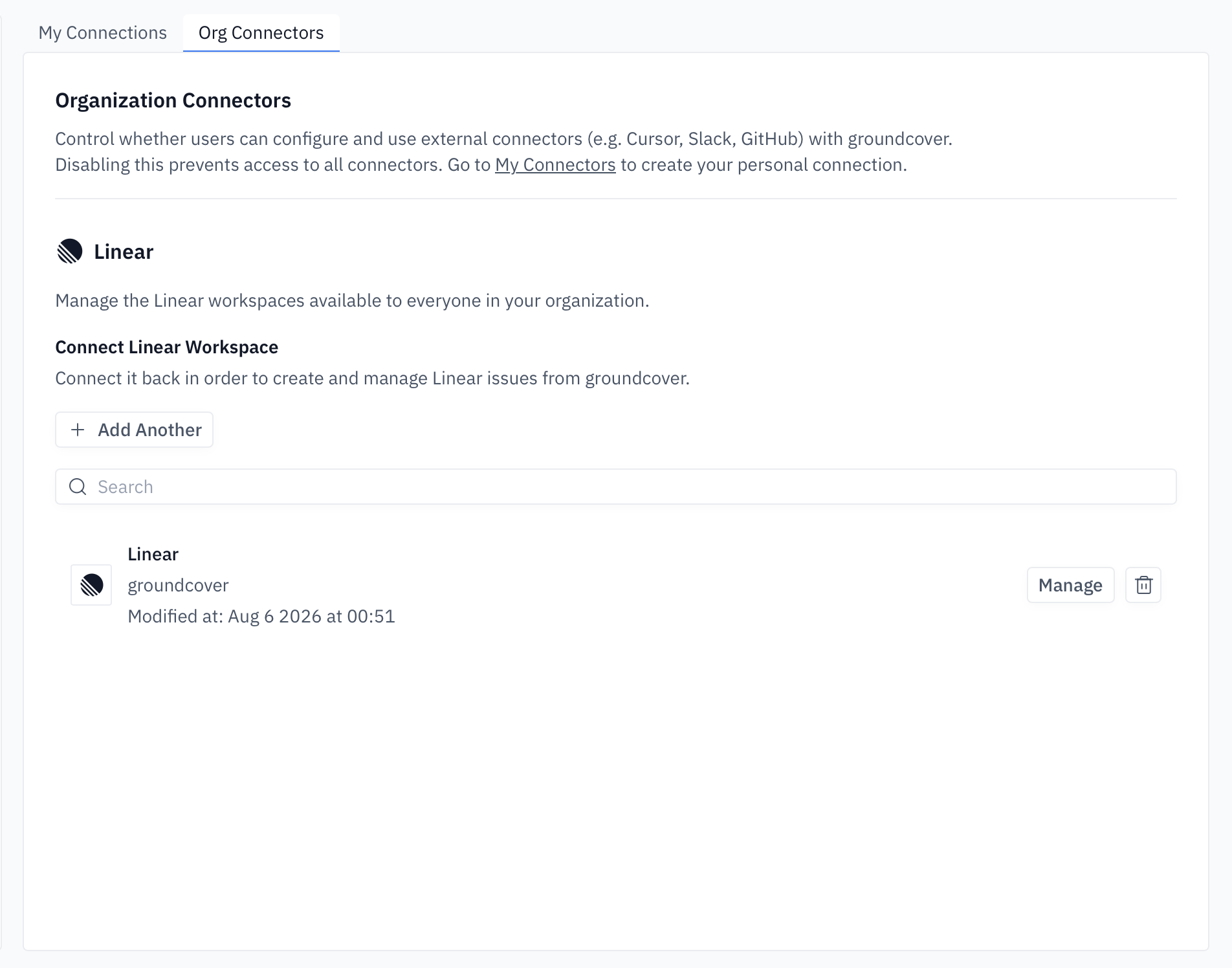
Open the Org Connectors tab.
In the Linear section, enter a unique Connector Name. This name identifies the Linear workspace throughout groundcover.
Click Create App.

Step 2: Create the OAuth application in Linear
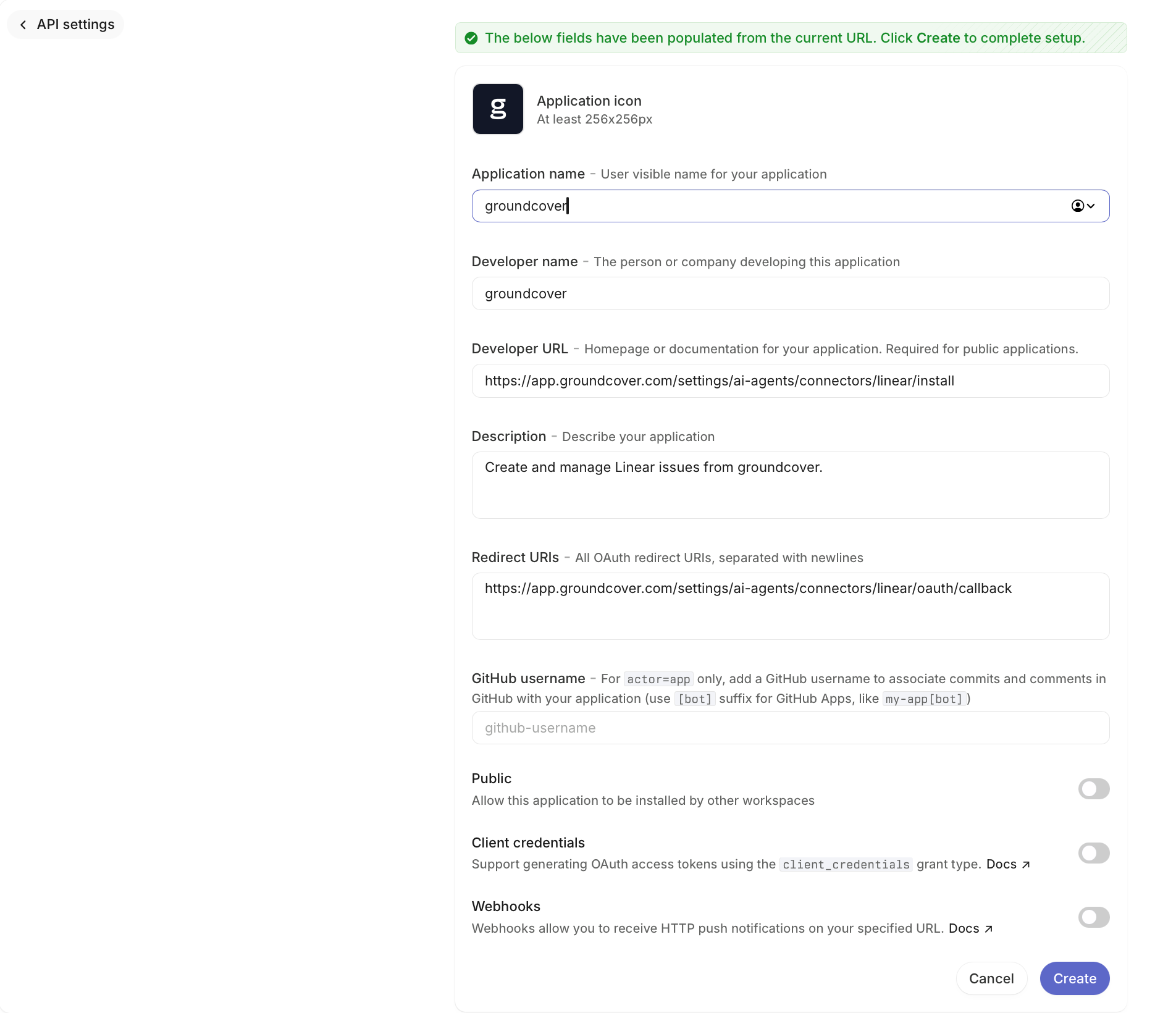
Linear opens in a new tab with the application fields populated from the groundcover manifest. Review the target workspace, then click Create. No changes to the pre-filled settings are required.

The application remains private to your Linear workspace.
Step 3: Copy the Linear Client ID
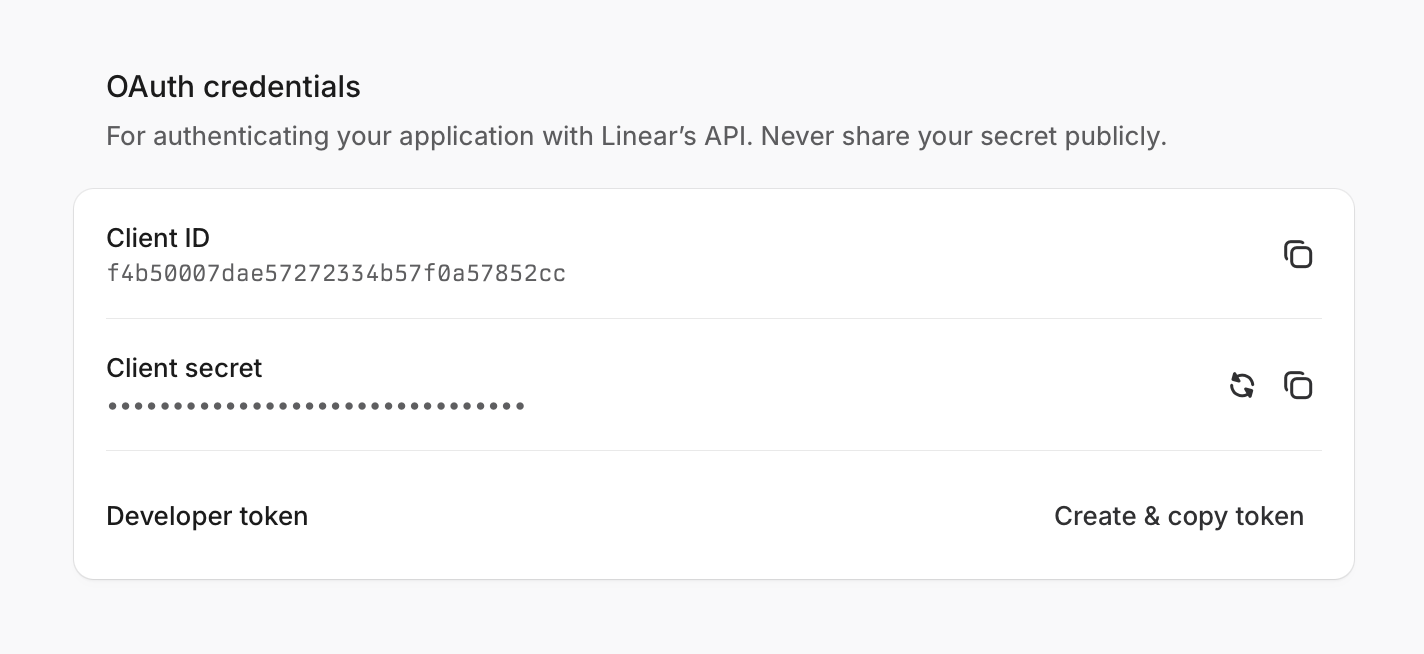
After Linear creates the application, open its settings and scroll to OAuth credentials. Copy the Client ID.

Only copy the Client ID into groundcover. Do not copy or share the Client secret.
Step 4: Connect and authorize the application
Return to the groundcover connector setup tab.
Paste the value into Linear OAuth Client ID.
Click Connect.
On the Linear OAuth approval page, select the correct workspace and approve the application.
After authorization returns you to groundcover, the Linear workspace appears under Org Connectors and is ready to use.

To connect another Linear workspace, click Add Another and repeat the setup with a unique Connector Name.
Connect your personal Linear account for Agent Mode
After an admin configures the organization connector, each user can enable Linear MCP tools for Agent Mode:
Go to Integrations → Connectors.
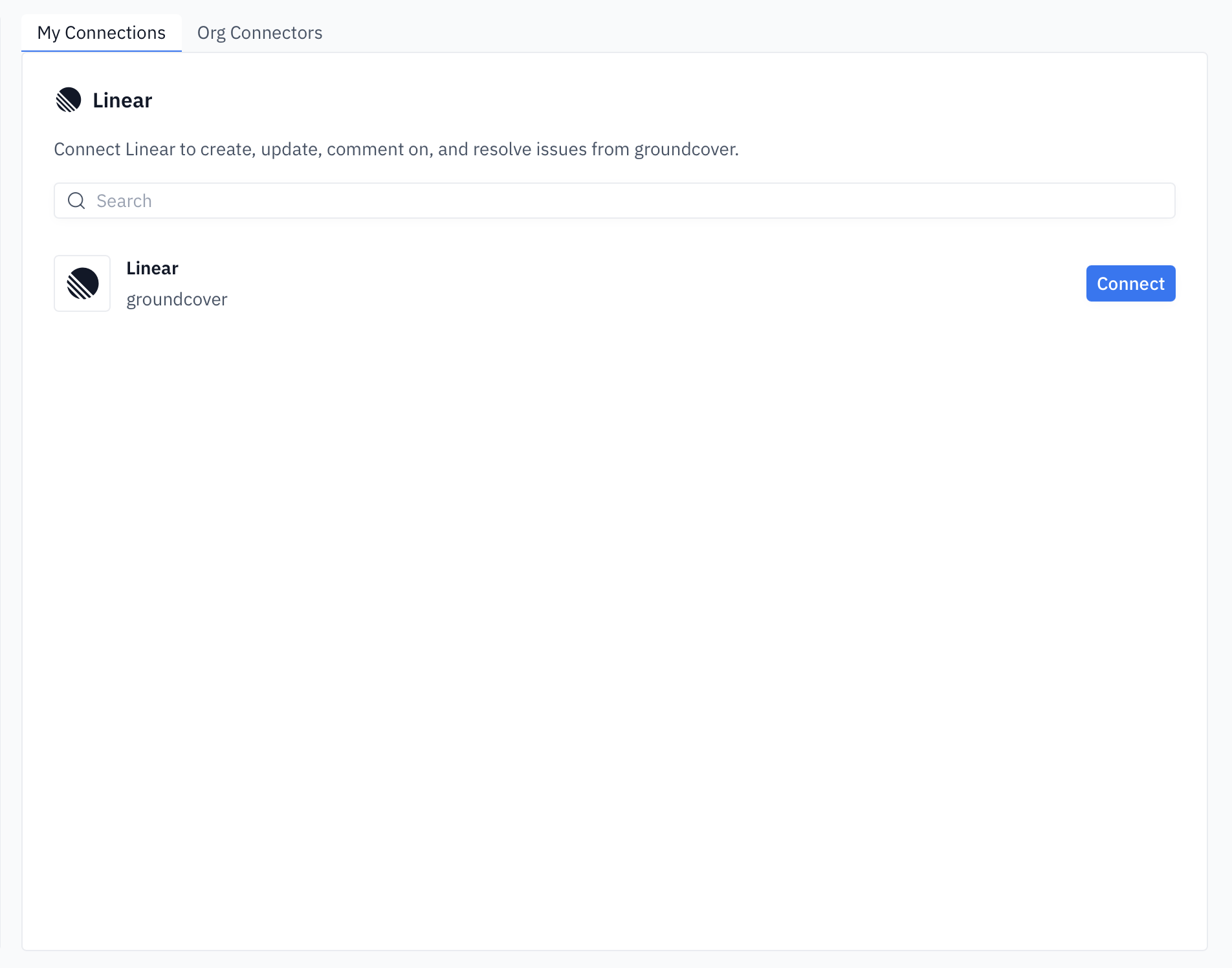
Open My Connections.
Find the Linear workspace you want to use and click Connect.
Approve the connection in Linear.

Agent Mode can now use Linear within the permissions of your connected Linear account. For example, you can ask it to create an issue, find issues assigned to you, or update an existing issue.
Create a Linear issue from a monitor issue
To create and link a Linear issue manually:
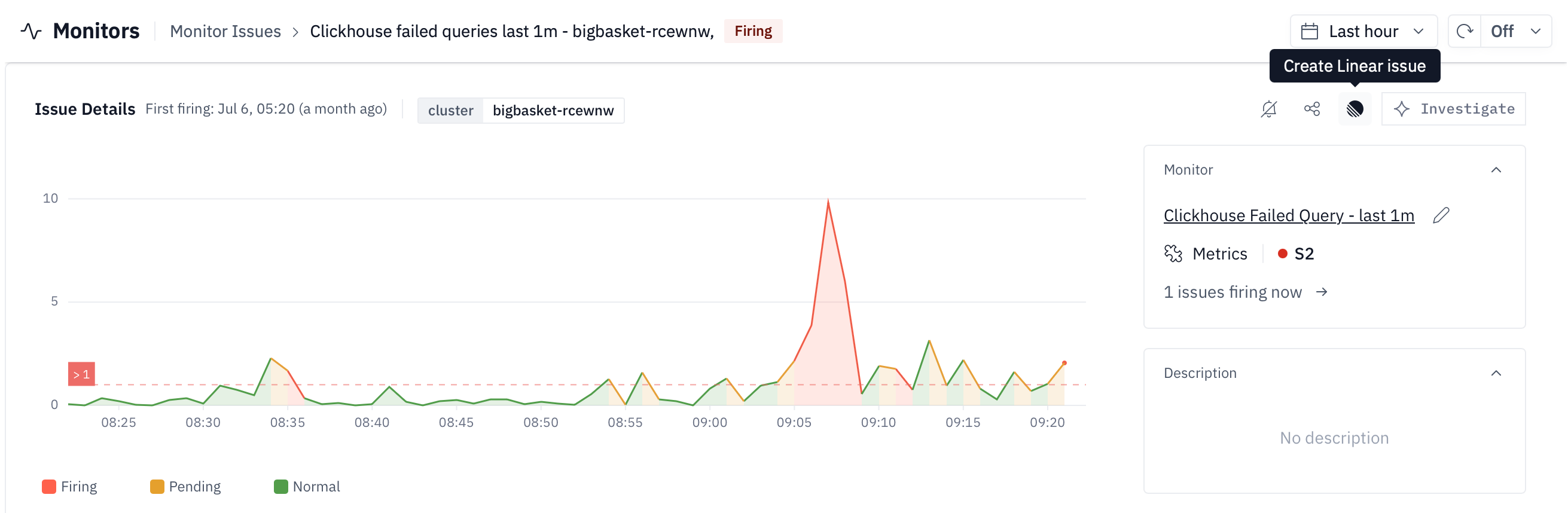
Go to Monitors → Monitor Issues and open an issue.
Click the Linear icon in the issue actions. Its tooltip reads Create Linear issue.

Review the pre-filled title and description.
Select a Linear team and, optionally, a project, labels, assignee, and status.
Create the issue.
The new Linear issue includes monitor context and links back to groundcover. After an issue is linked, groundcover shows actions for opening it or adding an update instead of creating a duplicate.
Automate Linear issues with a Notification Route
Use a Notification Route to keep a Linear issue synchronized with a monitor issue throughout its lifecycle:
Go to Monitors → Notification Routes.
Create a route or edit an existing one.
Define the monitor scope for the route.
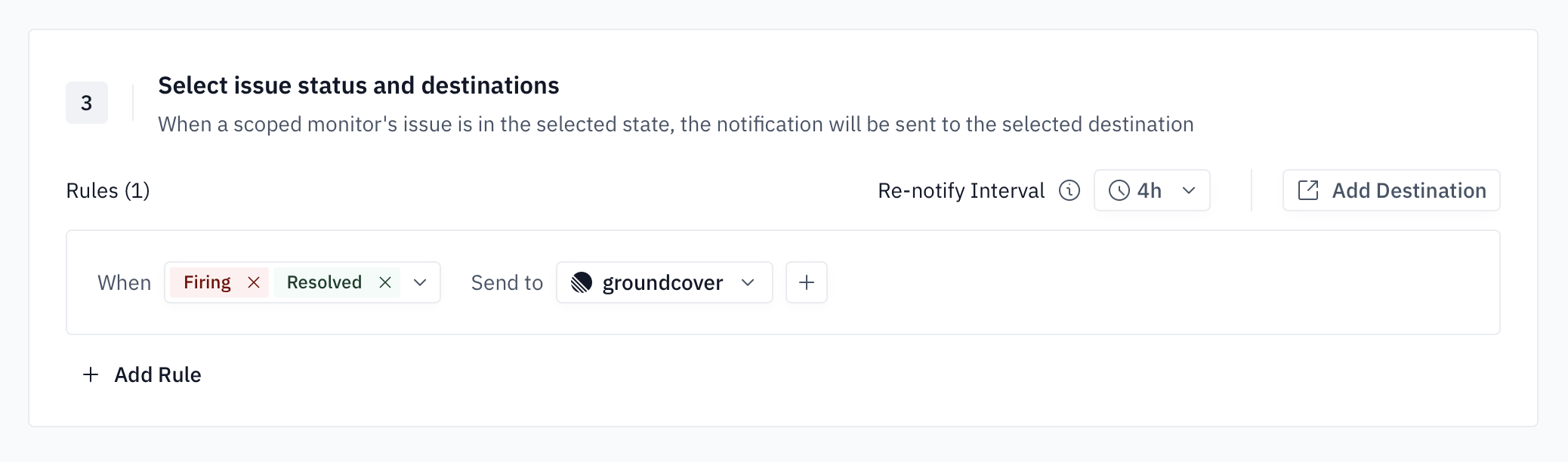
In Step 3: Rules, select Firing and Resolved.
Under Send to, select your Linear connector.
Select the required Linear Team.
Auto-resolve Linear issue is enabled by default. While it is enabled, select a required Resolved status. If you do not want groundcover to transition the Linear issue when the monitor resolves, disable auto-resolve instead.
Optionally, select a project, labels, or assignee.
Save the route.

When a matching monitor issue fires, groundcover creates one linked Linear issue. Re-notifications add updates to that issue instead of creating duplicates. When the monitor issue resolves, groundcover adds a resolution comment and, when auto-resolve is enabled, moves the Linear issue to the configured resolved status.
For more information about route scopes and rules, see Notification Routes.
Troubleshooting
Create App does not open Linear
Allow pop-ups for the groundcover application, then click Create App again.
You cannot create the OAuth application
Ask a Linear workspace administrator to create the application or grant you permission to manage OAuth applications.
The connector does not appear under My Connections
Confirm that a workspace admin completed the organization connector setup and authorized the intended Linear workspace.
Linear actions are unavailable
Confirm that the organization connector is still listed under Org Connectors. For Agent Mode actions, also confirm that your personal connection is active under My Connections.
Last updated