> For the complete documentation index, see [llms.txt](https://docs.groundcover.com/llms.txt). Markdown versions of documentation pages are available by appending `.md` to page URLs; this page is available as [Markdown](https://docs.groundcover.com/automate/workflows/full-webhook-examples/incident.io.md).
# incident.io
{% hint style="warning" %}
incident.io Notification Channel is getting an upgrade: meet [incident.io Destination](/automate/connected-apps/incident.io.md)
{% endhint %}
To integrate groundcover with [incident.io](https://incident.io), follow the steps below. Note that you’ll need a **Pro** incident.io account to view your incoming alerts.
1. **Generate an Alerts configuration for groundcover**\
Log in to your [incident.io](https://incident.io) account. Go to "On-call" -> "Alerts" -> "Configure" and add a new source.
2. **On the "Create Alert Source" screen** the answer to the question "Where do your alerts come from?" should be "HTTP". Select this source and give it a unique name. Hit "continue".
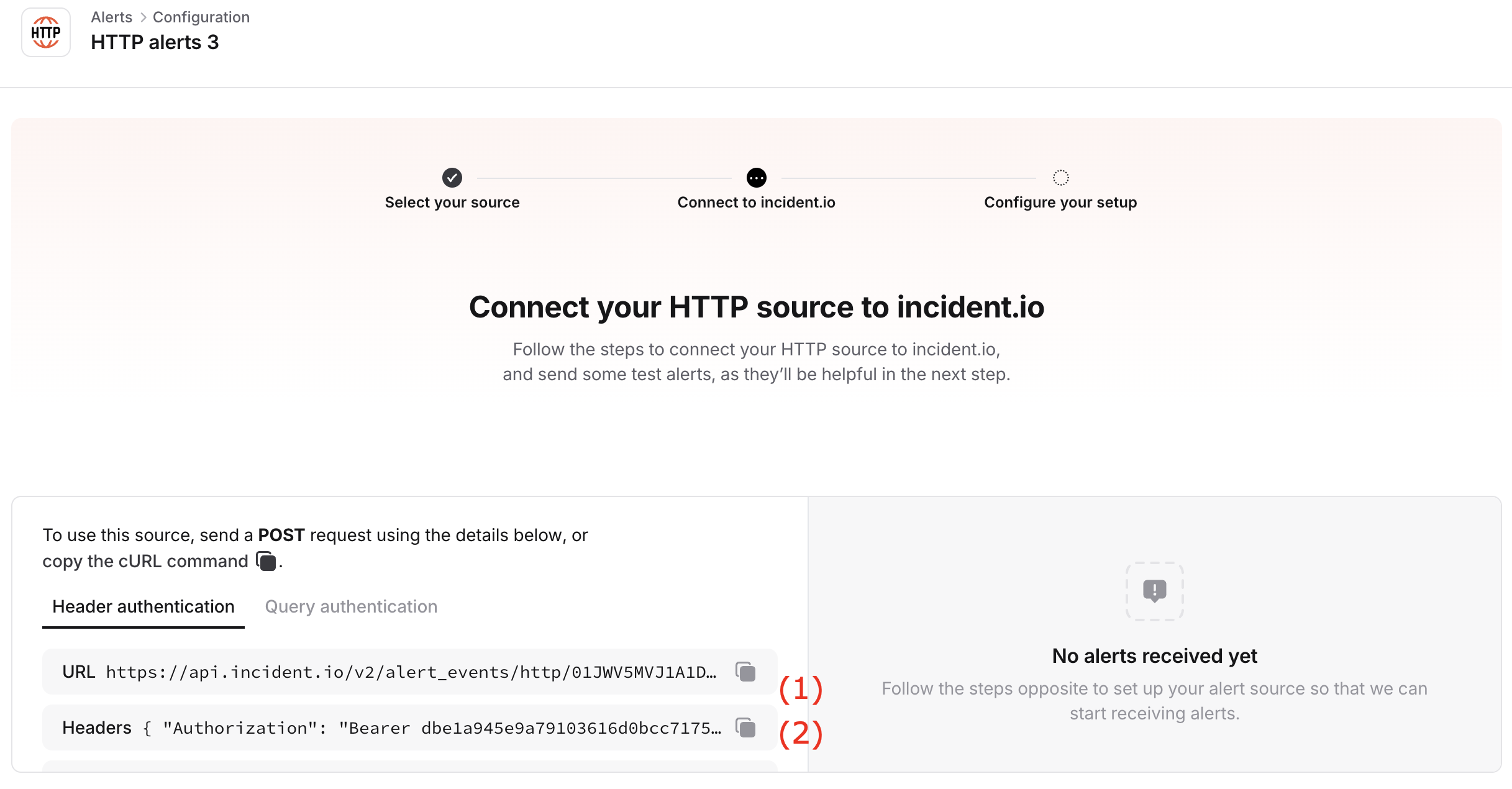
3. **incident.io will create your configuration now** from which you will need to copy the following items for the Webhook integration\\
4. **Set Up the Webhook in groundcover**
* Head out to the integrations section: Settings -> Integrations, to create a new [Webhook](https://docs.groundcover.com/integrations/workflow-integrations/webhook-integration)
* Start by giving your Webhook integration a name. This name will be used below in the provider block sample .
* Set the `Webhook URL` to the url you copied from field (1)
* Keep the HTTP method as `POST`
* Under headers add `Authorization`, and paste the "Bearer \" copied from field (2).
5. **Create a Workflow**\
Go to `Monitors --> Workflows --> Create Workflow`, and paste the YAML configuration provided below.\
**Note:** The `body` section is a dictionary of keys that will be sent as a JSON payload to the incident.io platform
6. **Configure the `provider` Block**\
In the `provider` block, replace `{{ providers.your-incident-io-integration-name }}` with your actual Webhook integration name (the one you created in step 4)\
For example, if you named your integration `test-incidentio`, the config reference would be: `{{ providers.test-incidentio }}`
7. **Required Parameters for Creating an alert**\
When triggering an alert, the following keys are required:
1. `title` - Alert title that can be pulled from groundcover as seen in the example
2. `status` - One of "firing" or "resolved" that can also be pulled from groundcover as the example shows.
8. You can include additional parameters for richer context (optional):
1. `description`
2. `deduplication_key` - unique attribute used to group identical alerts, groundcover provides this through the fingerprint attribute
3. `metadata` - Any additional metadata that you've configured within your monitor in groundcover. Note that these set should actively reflect your monitor definition in groundcover
{% hint style="info" %}
The attributes shown in the yaml block of the metadata section below are an example only! Alert labels can only be attributes used in the group by section of the actual monitor
{% endhint %}
**Example code for your groundcover workflow:**
```yaml
workflow:
id: incident-io-alerts-workflow
name: incident-io-alerts-workflow
description: Sends an API to incident.io alerts endpoint
triggers:
- type: alert
filters:
- key: annotations.incident-io-alerts-workflow
value: enabled
consts:
description: keep.dictget( {{ alert.annotations }}, "_gc_description", '')
issue: https://app.groundcover.com/monitors/issues?backendId={{ alert.labels.backend_id }}&selectedObjectId={{ alert.fingerprint }}
monitor: https://app.groundcover.com/monitors?backendId={{ alert.labels.backend_id }}&selectedObjectId={{ alert.labels._gc_monitor_id }}
redacted_labels: keep.dict_pop({{alert.labels}}, "_gc_monitor_id", "_gc_monitor_name", "_gc_severity", "backend_id", "grafana_folder", "_gc_issue_header")
silence: https://app.groundcover.com/monitors/create-silence?keep.replace(keep.join({{ consts.redacted_labels }}, "&", "matcher_"), " ", "+")
title: keep.dictget( {{ alert.annotations }}, "_gc_issue_header", "{{ alert.alertname }}")
cluster: keep.dictget( {{ alert.labels }}, "cluster", "[no-cluster]")
namespace: keep.dictget( {{ alert.labels }}, "namespace", "[no-namespace]")
workload: keep.dictget( {{ alert.labels }}, "workload", "[no-workload]")
actions:
- name: webhook
provider:
config: ' {{ providers.your-incident-io-integration-name }} '
type: webhook
with:
body:
title: '{{ alert.alertname }}'
description: '{{ alert.description }}'
deduplication_key: '{{ alert.fingerprint }}'
status: '{{ alert.status }}'
# To use metadata attributes that refer to alert.labels, the attributes
# must be used in the group by section of the monitor - the example below
# assumes that cluster, namespace and workload were used for group by
metadata:
cluster: '{{ consts.cluster }}'
namespace: '{{ consts.namespace }}'
service: '{{ consts.workload }}'
severity: '{{ alert.annotations._gc_severity }}'
```
---
# Agent Instructions
This documentation is published with GitBook. GitBook is the documentation platform designed so that both humans and AI agents can read, navigate, and reason over technical content effectively. Learn more at gitbook.com.
## Querying This Documentation
If you need additional information that is not directly available in this page, you can query the documentation by asking a question.
Perform an HTTP GET request on the following URL with the `ask` and `goal` query parameters:
```
GET https://docs.groundcover.com/automate/workflows/full-webhook-examples/incident.io.md?ask=&goal=
```
`ask` is the immediate question: it should be specific, self-contained, and written in natural language.
`goal` is what the user is ultimately trying to achieve, the reason they need the answer. Sharing it helps GitBook give you a better, more relevant answer. A goal is most helpful when it describes the outcome the user wants rather than restating the question. For example, with `ask=how do I create an API token`, a goal like `automate deployments from our CI pipeline` lets GitBook tailor the answer to that use case.
The response will contain a direct answer to the question and relevant excerpts and sources from the documentation.
Use this mechanism when the answer is not explicitly present in the current page, you need clarification or additional context, or you want to retrieve related documentation sections.