> For the complete documentation index, see [llms.txt](https://docs.groundcover.com/llms.txt). Markdown versions of documentation pages are available by appending `.md` to page URLs; this page is available as [Markdown](https://docs.groundcover.com/collect-data/data-pipelines/log-pipelines.md).

# Logs Pipeline

## Overview

groundcover supports the configuration of log pipelines to process and customize your logs before ingestion. With log parsing pipelines, you gain full flexibility to transform data as it flows into the platform.

Log parsing in groundcover is powered by [OpenTelemetry Transformation Language (OTTL)](https://github.com/open-telemetry/opentelemetry-collector-contrib/tree/main/pkg/ottl), a powerful and flexible language designed for transforming telemetry data. OTTL provides a rich set of functions and operators that allow you to parse, filter, enrich, and transform your logs with precision.

#### What You Can Do

Log parsing pipelines give you a structured way to:

* **Parse** - Extract structured data from unstructured log messages (JSON, GROK patterns, key-value pairs)
* **Filter** - Drop noisy or irrelevant logs to reduce costs and focus on what matters
* **Obfuscate** - Mask or remove sensitive data to maintain privacy and compliance
* **Convert to Metrics** - Transform logs into time-series metrics for long-term monitoring and alerting

Each pipeline is made up of transformation steps—each step defines a specific operation like parsing JSON, extracting key-value pairs, or modifying attributes. You can configure these transformations directly in your groundcover deployment.

## Adding Rules

Rules are created, tested and saved in the **Add Rules to Logs Pipeline** modal. You can open it from:

| Where                                     | How                                            | Sample logs used for testing                                                         |
| ----------------------------------------- | ---------------------------------------------- | ------------------------------------------------------------------------------------ |
| Logs page                                 | **Actions → Generate pipeline rules**          | Logs matching the page's current filters                                             |
| Log drawer                                | **Add Parsing Rule** in the log details header | The log you opened. The template starts with `conditions: []` so the rule runs on it |
| Settings → Data Pipelines → Logs Pipeline | **Add rules**                                  | Recent logs. Filter them in the modal                                                |
| groundcover agent                         | **Preview OTTL** on a suggested rule           | One rule card for each rule the agent suggested                                      |

The modal has two steps.

**1. Create rules.** Give the rule a name and write its body in YAML. Use **Insert** to start from a template (see [Rule Templates](#rule-templates)). The name is a separate field, so the YAML you edit does not include `ruleName`.

**2. Test.** The first sample log is selected when the modal opens. **Run simulation** runs your rule against it and shows one of these results:

* a diff between the original log and the result
* a note that the rule drops the log
* a note that the rule's conditions did not match

Select another log from the list to test it. If the sample has only one log, the list is hidden.

<figure><img src="https://2771001740-files.gitbook.io/~/files/v0/b/gitbook-x-prod.appspot.com/o/spaces%2FUHgqKYgCiRKdOpWQdi52%2Fuploads%2Fgit-blob-61be52cca76a50978e120f73ee40b633b69acd88%2Flogs-add-rules-modal-simulation-diff.png?alt=media" alt="Simulation results showing the original log and the log after the rule adds a message attribute"><figcaption><p>The simulation highlights what the rule changes</p></figcaption></figure>

Click **Create rules** to add the rules to the **end** of the pipeline. To place a rule earlier, drag it on the [Pipelines page](#managing-rules).

{% hint style="info" %}

* Only Admins can create or edit pipeline rules.
* You can't save a rule while the simulation reports it as invalid or failing.
* **Convert to metrics** and **Merge multiple logs** rules can't be simulated yet. You can still save them.
* The simulation runs in the groundcover backend on a log that was already ingested. Saved rules run in your sensors, so behavior that depends on the version (for example, `obfuscate_pii` detection) follows your sensors' version.
  {% endhint %}

{% hint style="success" %}
Always run the simulation on a few sample logs before saving a rule. This helps catch errors and ensures your rules work as expected.
{% endhint %}

### Rule Templates

Every template sets `statementsErrorMode: propagate`, so a template that does not fit the log shows up as an error in the simulation. Its starting conditions depend on where you opened the modal:

* **Logs page, Pipelines page and agent:** placeholder conditions (`level == "debug"` and `workload == "groundcover-demo"`). Replace them with your own before saving.
* **Log drawer:** `conditions: []`, so the simulation runs on the log you opened.

{% hint style="warning" %}
A rule saved with `conditions: []` runs on **every** log in the pipeline, not just the one you tested. Add conditions (for example, `workload == "<your workload>"`) before you click **Create rules**, unless the rule really should apply to all logs.
{% endhint %}

| Group            | Template                 | What it does                                                                                                                                                                                      |
| ---------------- | ------------------------ | ------------------------------------------------------------------------------------------------------------------------------------------------------------------------------------------------- |
| Parse            | Parse with grok          | `ExtractGrokPatterns` on `body`, merged into `attributes`                                                                                                                                         |
|                  | Parse JSON               | `ParseJSON(body)`, only when the body starts with `{`                                                                                                                                             |
|                  | Parse key=value          | `ParseKeyValue(body, "=", " ")`                                                                                                                                                                   |
|                  | Extract with regex       | `ExtractPatterns`. Each named group `(?P<name>...)` becomes an attribute                                                                                                                          |
| Transform        | Set log fields           | Copies parsed attributes onto `level`, `body`, `time`, `trace_id` and `span_id`                                                                                                                   |
|                  | Rename attributes        | `set` the new key, then `delete_key` the old one                                                                                                                                                  |
|                  | Add or enrich attributes | `set(attributes["team"], "payments")`                                                                                                                                                             |
|                  | Remove attributes        | `delete_key` / `delete_matching_keys`                                                                                                                                                             |
| Filter & combine | Drop Logs                | `set(drop, true)`. See [Drop Logs](/collect-data/data-pipelines/log-pipelines/drop-logs.md)                                                                                                       |
|                  | Convert to metrics       | `log_to_metric_count` / `log_to_metric_sum` (can't be simulated). See [Logs-to-Metrics](/collect-data/data-pipelines/log-pipelines/logs-to-metrics.md)                                            |
|                  | Merge multiple logs      | `multiline_merge` (can't be simulated). See [Merging Multiline Logs](/collect-data/data-pipelines/log-pipelines/merging-multiline-logs.md)                                                        |
| Privacy          | Obfuscate PII            | `obfuscate_pii(body, "*", "email,credit_card,aws_credential")`. See [Obfuscate Logs](/collect-data/data-pipelines/log-pipelines/obfuscate-logs.md)                                                |
|                  | Mask custom pattern      | `replace_pattern`, for example on Bearer tokens                                                                                                                                                   |
|                  | Mark as sensitive        | `sensitive(attributes["email"])`. See [Sensitive Attributes](/collect-data/data-pipelines/log-pipelines/sensitive-attributes.md). Shown only when sensitive data access is enabled on the backend |

{% hint style="info" %}
Parsed values stay in `attributes` until you copy them onto the log's own fields. Use **Set log fields** after a parse rule so the log explorer can filter, color, order and correlate on the parsed level, message, timestamp and trace ID.
{% endhint %}

## Writing Parsing Rules

### Available Fields and Keys

When writing parsing rules, you have access to various fields that represent different aspects of the log. Understanding which fields are writable and which are read-only is crucial for effective rule creation.

#### Writable Fields

These fields can be modified in your parsing rules:

| Field        | Type    | Description                                                                        |
| ------------ | ------- | ---------------------------------------------------------------------------------- |
| `cache`      | Map     | Temporary storage for intermediate values. Access sub-keys with `cache["key"]`     |
| `l2m`        | Map     | Logs-to-metrics data. Access sub-keys with `l2m["key"]`                            |
| `time`       | Time    | Timestamp of the log                                                               |
| `body`       | String  | The main log message content                                                       |
| `attributes` | Map     | Custom attributes extracted from the log. Access sub-keys with `attributes["key"]` |
| `trace_id`   | String  | Trace identifier for distributed tracing correlation                               |
| `span_id`    | String  | Span identifier for distributed tracing                                            |
| `level`      | String  | Log severity level (info, error, debug, etc.)                                      |
| `format`     | String  | Log format (json, clf, unknown, etc.)                                              |
| `drop`       | Boolean | Set to `true` to drop/filter the log                                               |

#### Read-Only Fields

These fields provide context but **cannot be modified**. Attempting to set them will result in an error:

| Field            | Type   | Description                                                     |
| ---------------- | ------ | --------------------------------------------------------------- |
| `workload`       | String | Name of the Kubernetes workload (deployment, statefulset, etc.) |
| `source`         | String | Source of the log data                                          |
| `cluster`        | String | Kubernetes cluster name                                         |
| `env`            | String | Environment name                                                |
| `container_name` | String | Container that generated the log                                |
| `namespace`      | String | Kubernetes namespace                                            |

#### Special Fields

**cache** - Temporary Storage

The `cache` field is particularly useful for multi-step transformations:

```yaml
statements:
  # Extract to cache first
  - 'set(cache, ExtractGrokPatterns(body, "pattern"))'
  # Process cached values
  - 'replace_pattern(cache["field"], "old", "new")'
  # Merge into attributes
  - 'merge_maps(attributes, cache, "insert")'
```

**attributes** - Custom Fields

The `attributes` map is where you store extracted structured data:

```yaml
statements:
  - 'set(attributes["user_id"], "12345")'
  - 'set(attributes["action"], "login")'
  - 'set(attributes["ip"], "192.168.1.1")'
```

**drop** - Log Filtering

The `drop` field is a special boolean flag for filtering logs:

```yaml
statements:
  # Drop unconditionally
  - 'set(drop, true)'
  
  # Drop conditionally
  - 'set(drop, true) where IsMatch(body, "/healthz")'
```

#### Setting Conditions

Use `conditions` to apply transformations only when specific attributes match. This ensures your pipeline runs efficiently and only on relevant logs.

Common fields you can use([Full List Mentioned Above](#available-fields-and-keys)):

* `workload` – Name of the service or app
* `container_name` – Container where the log originated
* `level` – Log severity (e.g., info, error, debug)
* `format` – Log format (e.g., JSON, CLF, unknown)
* `namespace` – Kubernetes namespace
* `pod` – Pod name
* `cluster` – Kubernetes cluster name
* `env` – Environment name

**Apply rules to specific clusters**

The logs pipeline is shared by all clusters connected to your backend. To run a rule only on logs from some clusters, add a condition on `cluster`:

```yaml
ottlRules:
  - ruleName: drop-debug-logs-in-staging
    conditions:
      - cluster == "staging"
      - level == "debug"
    conditionLogicOperator: and
    statements:
      - set(drop, true)
```

Without `conditionLogicOperator: and`, conditions are combined with `or`, so the rule above would drop every log from `staging` and every debug log from every cluster.

#### Common Functions

Some commonly used functions in groundcover pipelines:

* `ExtractGrokPatterns` – Extract structured data using GROK patterns
* `ExtractPatterns` – Extract named regex groups into a map
* `ParseJSON` – Parse JSON strings into structured attributes
* `ParseKeyValue` – Parse key=value formatted strings
* `replace_pattern` – Replace text patterns (useful for obfuscation)
* `delete_key` – Remove specific attributes
* `delete_matching_keys` – Remove all attributes whose keys match a regex
* `merge_maps` – Merge extracted data into attributes
* `set` – Set attribute values
* `IsMatch` – Match patterns in log fields
* `multiline_merge` – Merge multiline log entries
* `obfuscate_pii` – Detects and redacts sensitive data
* `obfuscate_matching_keys` – Mask values of map entries whose keys match a regex, keeping the keys in place
* `sensitive` – Mask an attribute so only users with sensitive data access can reveal it. See [Sensitive Attributes](/collect-data/data-pipelines/log-pipelines/sensitive-attributes.md)

For a complete list of available OTTL functions, see the [OTTL Functions Reference](https://github.com/open-telemetry/opentelemetry-collector-contrib/blob/main/pkg/ottl/ottlfuncs/README.md).

## Generating Parsing Rules from Log Patterns

<figure><img src="https://2771001740-files.gitbook.io/~/files/v0/b/gitbook-x-prod.appspot.com/o/spaces%2FUHgqKYgCiRKdOpWQdi52%2Fuploads%2Fgit-blob-5e71d07be29ea8ed1556129f2f49104fd73b954e%2Flogs-add-rules-modal-generated-parse-rules.png?alt=media" alt="Add Rules to Logs Pipeline modal with two rules generated from log patterns"><figcaption><p>Generate rules writes one parse rule per log pattern</p></figcaption></figure>

In the Add Rules modal, **Generate rules** analyzes the sample logs, groups them by pattern, and writes a parse rule for each pattern. The generated rules replace all cards in the form. Review and test them before you click **Create rules**. Nothing is saved until you do.

* The sample must be filtered (for example, by workload or namespace). Without a filter the button is disabled.
* Rules are generated for up to the **10 most common patterns** in the sample.
* The button appears only while a parse rule is in the form. It does not appear when you edit an existing rule.

{% hint style="info" %}
If your logs have more than 10 patterns, narrow the filters (workload, namespace, level, etc.) so the patterns you care about are among the most common ones.
{% endhint %}

#### How To Generate Rules

1. In the Logs view, filter down to the logs you want to parse
2. Click the **Actions** dropdown in the top right and select **Generate pipeline rules**
3. Click **Generate rules**
4. Review the generated rules and run the simulation on the sample logs
5. Make any necessary adjustments and click **Create rules**

## The Rules Pipeline

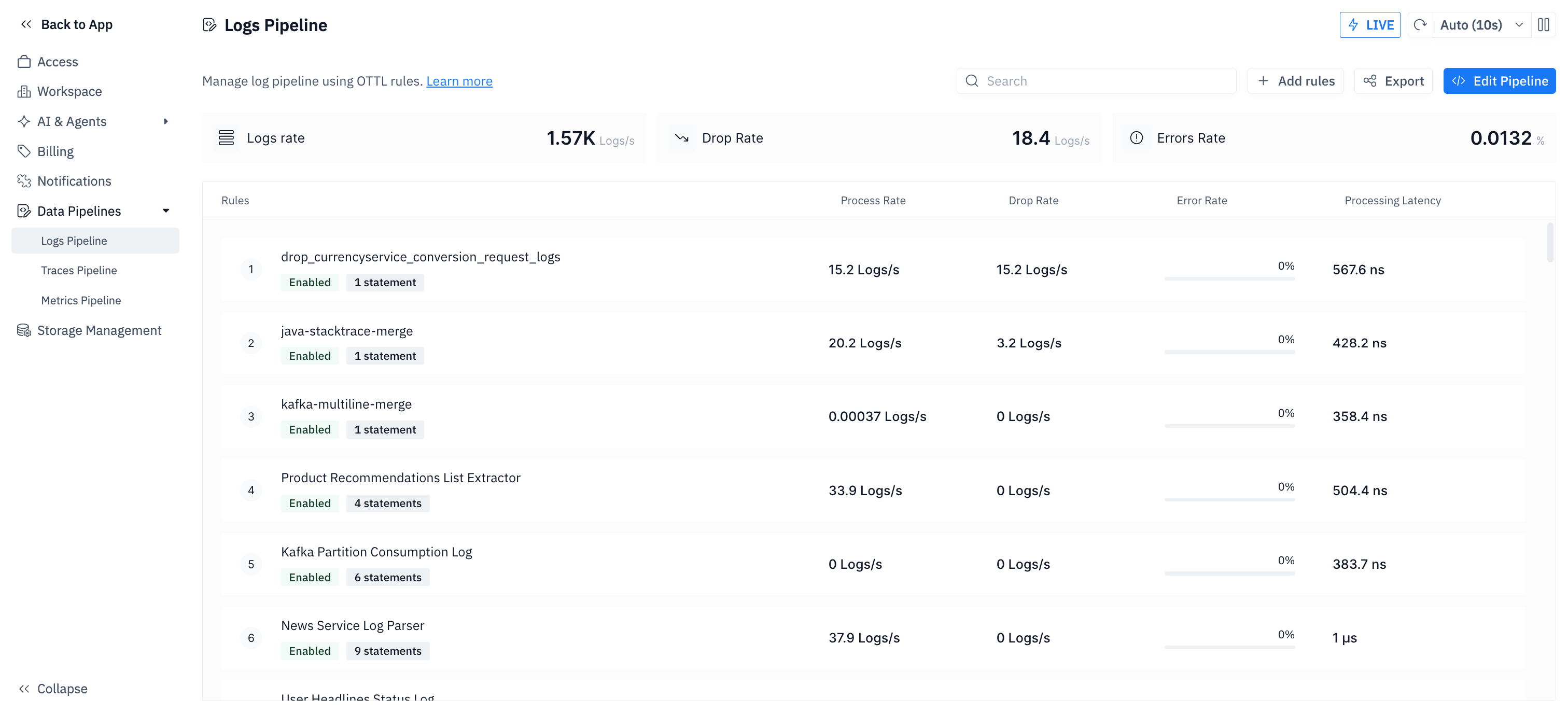
<figure><img src="https://2771001740-files.gitbook.io/~/files/v0/b/gitbook-x-prod.appspot.com/o/spaces%2FUHgqKYgCiRKdOpWQdi52%2Fuploads%2Fgit-blob-77e3019eedd1923c1340536ccb976cb716651508%2Flogs-pipeline-settings-rules-list.png?alt=media" alt="Logs Pipeline settings page listing rules with their process rate, drop rate, error rate and latency"><figcaption></figcaption></figure>

In groundcover, all parsing rules are part of a **single pipeline** that processes your logs. Each rule you create becomes a step in this pipeline, executed sequentially from top to bottom. This unified pipeline approach ensures consistent processing and makes it easy to understand the flow of transformations applied to your logs.

#### Viewing Your Pipelines

After creating parsing rules, they are deployed to **Settings → Data Pipelines → Logs Pipeline** where you can monitor their performance and effectiveness.\
<https://app.groundcover.com/settings/pipelines>

The Pipelines page provides a comprehensive view of all your log parsing rules with real-time metrics:

#### Managing Rules

From **Settings → Data Pipelines → Logs Pipeline** you can:

* **Add rules** – Open the [Add Rules modal](#adding-rules).
* **Edit** a rule – Open the modal on that rule to change and re-test it. The rule keeps its type and its position in the pipeline. If someone else changes the pipeline while you're editing, the save is refused so their change isn't overwritten.
* **Duplicate** a rule – Open the modal with a copy named `<rule name> (copy)`. The copy is added to the end of the pipeline.
* **Enable / Disable** or **Delete** a rule.
* **Reorder** rules by dragging them. Reordering is turned off while a search is active.
* **Edit Pipeline** – Edit the full pipeline YAML.
* **Export** – Copy the pipeline YAML, for example to use with Terraform.

#### Pipeline Metrics

For each rule in the Pipelines page, you'll see four key metrics:

**Process Rate**

The throughput of logs being processed by this rule, measured in **Logs/s** (logs per second). This shows how many logs are actively being transformed or evaluated by the rule.

**Drop Rate**

The rate at which logs are being filtered out by this rule, measured in **Logs/s**. This metric helps you understand the effectiveness of your filtering rules in reducing log volume.

**Error Rate**

The percentage of logs that encounter errors during processing, shown as a **percentage (%)**. This includes both condition evaluation errors and transformation execution errors. A healthy rule should have an error rate close to 0%.

**Processing Latency**

The average time it takes to process a single log through this rule, typically displayed in **nanoseconds (ns)** or **microseconds (μs)**. Lower values indicate better performance.

### Understanding the Metrics

The Pipelines page shows real-time statistics to help you monitor the health and performance of your parsing rules.

#### What Good Metrics Look Like

**Process Rate:**

* Should match your expected log volume for rules that apply to all logs
* Will be lower for rules with specific conditions
* Zero process rate may indicate the rule conditions never match

**Drop Rate:**

* For filtering rules: Should show significant volume if working correctly
* For parsing rules: Should typically be 0 (unless explicitly dropping logs)
* High unexpected drop rates may indicate rule errors

**Error Rate:**

* Should be **0%** or very close to it
* Any error rate above **1%** indicates a problem that needs investigation

{% hint style="danger" %}
High error rates indicate problems with your rule configuration. Edit the rule from the Pipelines page and run the simulation on sample logs to identify issues.
{% endhint %}

**Processing Latency:**

* Typically ranges from **100ns to 1ms** per log
* Complex parsing operations may take longer
* Values consistently above **10ms** indicate performance issues

{% hint style="info" %}
If you see high processing latency, consider simplifying regex patterns or splitting complex rules into multiple steps.
{% endhint %}

#### Rule Order Matters

{% hint style="warning" %}
**The order of parsing rules is critical!** Rules are executed sequentially from top to bottom, and this order significantly impacts behavior.
{% endhint %}

**Why Rule Order Is Important**

1. **Earlier rules process more logs** - A rule at position 1 sees ALL logs, while a rule at position 10 only sees logs that weren't dropped by rules 1-9
2. **Dropping affects downstream rules** - If rule #3 drops 80% of logs, rule #4 will only process the remaining 20%
3. **Transformations are cumulative** - Fields extracted in rule #1 are available to rule #2 and beyond
4. **Performance optimization** - Place expensive parsing operations AFTER filter rules to process fewer logs

**Best Practices for Rule Ordering**

**Recommended order:**

1. **Drop rules first** - Filter out noisy logs before expensive parsing
2. **Quick parsing** - Fast, simple extractions
3. **Complex parsing** - Resource-intensive transformations
4. **Obfuscation rules last** - Mask sensitive data after all useful fields are extracted

**Example of good ordering:**

```yaml
ottlRules:
  # 1. Drop health checks (filters out 60% of logs)
  - ruleName: "drop_health_checks"
    statements:
      - 'set(drop, true) where IsMatch(body, "/healthz")'
  
  # 2. Drop debug logs (filters another 20%)
  - ruleName: "drop_debug"
    conditions:
      - 'level == "debug"'
    statements:
      - 'set(drop, true)'
  
  # 3. Fast parsing for remaining 20%
  - ruleName: "extract_basic_fields"
    statements:
      - 'set(cache, ExtractGrokPatterns(body, "simple pattern"))'
  
  # 4. Complex parsing (now only processing 20% of original volume)
  - ruleName: "parse_json_payload"
    statements:
      - 'set(cache["parsed"], ParseJSON(body))'
  
  # 5. Obfuscate sensitive data
  - ruleName: "mask_emails"
    statements:
      - 'replace_pattern(attributes["email"], "pattern", "****")'
```

### Pipeline Structure

Rules are defined as a list of steps which are executed one after another. The rules can be viewed and edited by admins in the settings tab, under "Pipelines".\
<https://app.groundcover.com/settings/pipelines>

The rules run in groundcover's sensors. This is ideal for cost savings, as the original logs are not sent to or stored in the backend. This is useful particularly when the pipeline is used to drop logs. Logs sent directly to the groundcover-managed OTLP endpoint get the same rules at ingestion.

There is a single logs pipeline per backend, shared by all clusters connected to that backend. To apply a rule to some clusters only, add a condition on `cluster`. See [Setting Conditions](#setting-conditions). If you have multiple backends, each has its own pipeline, so add the rules to each backend that needs them.

{% hint style="info" %}
groundcover sensors need an [Ingestion Key](/collect-data/ingestion-keys.md) for pipeline rules to take effect.
{% endhint %}

The pipeline is stored in `yaml` format and can be edited in the UI. The result `yaml` can be exported to be used with groundcover's terraform provider, if you prefer to use a version control system (e.g. `git`). See [Managing with Terraform](#managing-with-terraform).

{% hint style="info" %}
Each rule must have a unique and non-empty `ruleName`
{% endhint %}

{% hint style="info" %}
Rule keys are case-insensitive: `RuleName` and `ruleName` are both accepted. The UI writes keys in camelCase.
{% endhint %}

{% hint style="warning" %}
The logs pipeline was previously editable using helm values. Rules that exist in the sensor's values are executed prior to the ones received via remote configuration, and will not be visible in UI.
{% endhint %}

#### Basic Structure

```yaml
ottlRules:
  - ruleName: "rule1"
    conditions:
      - 'workload == "service1" or workload == "service2"'
    statements:
      - statement1
      - statement2
    conditionLogicOperator: or
    statementsErrorMode: ignore
  - ruleName: "rule2"
    conditions:
      - 'level == "debug" or container_name == "test"'
      - 'namespace == "default"'
    statements:
      - statement1
      - statement2
    conditionLogicOperator: and
    statementsErrorMode: propagate
```

#### Required Attributes

To define a pipeline rule, make sure to include the following fields:

* `ruleName` – Unique identifier for the rule (required)
* `statements` – List of transformations to apply (required)
* `conditions` – Logic for when the rule should run
* `conditionLogicOperator` – `and` / `or` when you have multiple conditions (default: `or`)
* `statementsErrorMode` – How statement failures are handled: `ignore` or `propagate` (default: `propagate`)

**Statement Error Mode**

`statementsErrorMode` controls what happens when a statement in a rule fails (for example `ParseJSON` on non-JSON, type mismatches, or missing fields).

<table><thead><tr><th width="141.5234375">Value</th><th>Behavior</th></tr></thead><tbody><tr><td><code>ignore</code></td><td>Skip the failed statement, continue with the rest of the statements in that rule</td></tr><tr><td><code>propagate</code></td><td>Stop the remaining statements in that rule and record an error (shows up in rule Error Rate / metadata). Check <code>gc_metadata.OTTL_&#x3C;rule_name>:error</code> to see the affected logs</td></tr></tbody></table>

Failed statements do **not** drop the log. The log continues to later rules and is still ingested unless a rule sets `drop: true`.

**When to use which**

* Parsing / enrichment on mixed formats → `ignore`
* You want partial application of later statements in the same rule to stop, and failures visible in pipeline metrics → `propagate`

#### Troubleshooting Rule Issues

**High error rates:**

* Edit the rule from the Pipelines page and **Run simulation** against sample logs
* Check for regex syntax errors
* Verify field names exist in your logs
* Prefer `statementsErrorMode: ignore` for parsing rules where some logs won’t match the expected shape; high Error Rate with `propagate` often means expected parse misses, not a broken rule

**High processing latency:**

* Simplify complex regex patterns
* Split multi-step rules into separate rules
* Place drop rules earlier to reduce processing volume

**Low condition met percentage:**

* Verify your conditions match actual log attributes
* Check if upstream rules are dropping logs unexpectedly
* Review filter conditions for typos

**Unexpected drop rates:**

* Review the rule logic and conditions
* Check if drop statements have unintended `where` clauses
* Verify the rule order isn't causing issues

## Managing with Terraform

Manage the logs pipeline as code with the [`groundcover_logspipeline`](https://registry.terraform.io/providers/groundcover-com/groundcover/latest/docs/resources/logspipeline) resource of the [groundcover Terraform provider](/reference/groundcover-terraform-provider.md). Its `value` is the same YAML you see when you export the pipeline from the UI.

{% hint style="warning" %}
`groundcover_logspipeline` is a singleton: it holds the whole pipeline for your backend. Define it in a single Terraform configuration, not once per cluster, or each `terraform apply` overwrites the others. Changes made in the UI are also overwritten on the next apply.
{% endhint %}


---

# Agent Instructions
This documentation is published with GitBook. GitBook is the documentation platform designed so that both humans and AI agents can read, navigate, and reason over technical content effectively. Learn more at gitbook.com.

## Querying This Documentation
If you need additional information that is not directly available in this page, you can query the documentation by asking a question.

Perform an HTTP GET request on the following URL with the `ask` and `goal` query parameters:

```
GET https://docs.groundcover.com/collect-data/data-pipelines/log-pipelines.md?ask=<question>&goal=<user_goal>
```

`ask` is the immediate question: it should be specific, self-contained, and written in natural language.
`goal` is what the user is ultimately trying to achieve, the reason they need the answer. Sharing it helps GitBook give you a better, more relevant answer. A goal is most helpful when it describes the outcome the user wants rather than restating the question. For example, with `ask=how do I create an API token`, a goal like `automate deployments from our CI pipeline` lets GitBook tailor the answer to that use case.

The response will contain a direct answer to the question and relevant excerpts and sources from the documentation.

Use this mechanism when the answer is not explicitly present in the current page, you need clarification or additional context, or you want to retrieve related documentation sections.