> For the complete documentation index, see [llms.txt](https://docs.groundcover.com/llms.txt). Markdown versions of documentation pages are available by appending `.md` to page URLs; this page is available as [Markdown](https://docs.groundcover.com/investigate/real-user-monitoring-rum/sessions.md). Agents can also search and read this documentation through its [MCP server](https://docs.groundcover.com/~gitbook/mcp).
# Sessions
Browse web and mobile user sessions, follow each session's event timeline, replay web sessions, and have the Agent explain a session.
A session is one user's visit to your web application or mobile app, from the first event until the user leaves or goes idle. Sessions show you what each user did, what went wrong, and which backend requests their actions triggered.
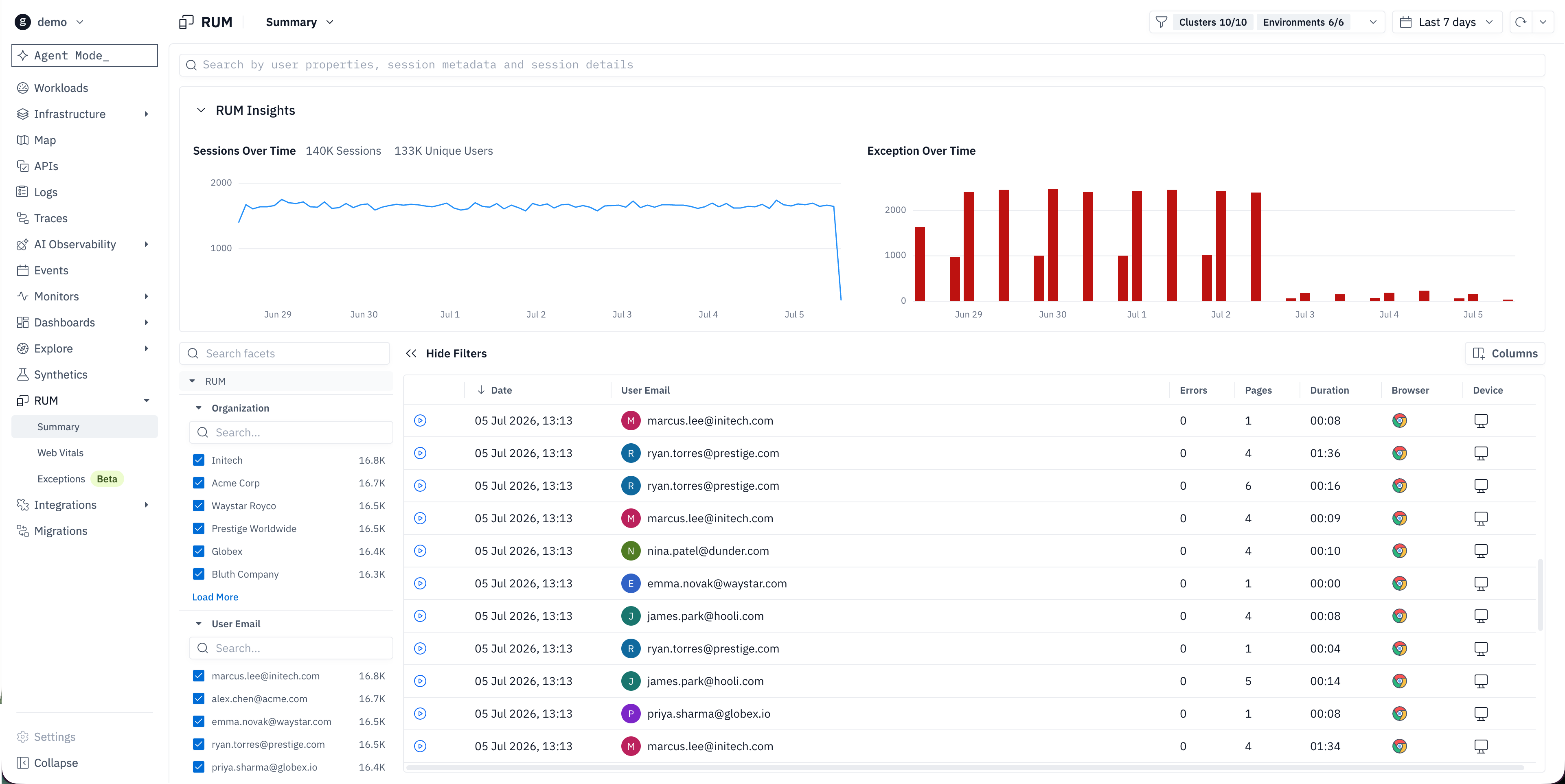
Open **RUM** > **Summary** and select **Web** or **Mobile** in the header. The **RUM Insights** section at the top shows **Sessions Over Time** and **Exception Over Time**. The sessions table below lists one row per session.
{% tabs %}
{% tab title="Web" %}
Web sessions on the RUM Summary page
{% endtab %}
{% tab title="Mobile" %}
Mobile sessions on the RUM Summary page
{% endtab %}
{% endtabs %}
## Sessions table
Choose columns with **Columns** above the table. Web and mobile sessions have different columns, and each platform keeps its own column layout.
{% tabs %}
{% tab title="Web" %}
| Column | Shown by default | What it shows |
| ------------ | ---------------- | ----------------------------------------------------------------------------- |
| Replay | Yes | A play button when the session has a recording. Select it to open the replay. |
| Date | Yes | When the session started. |
| User Email | Yes | The email of the user you identified in the SDK, or **Anonymous**. |
| Errors | Yes | The number of exceptions in the session. |
| Pages | Yes | The number of pages the user visited. |
| Duration | Yes | How long the session lasted. A session that is still active shows **Live**. |
| Browser | Yes | The browser the session ran in. |
| Device | Yes | The type of device, such as desktop or mobile. |
| User ID | No | The user ID you identified in the SDK. |
| Service | No | The application's `service.name`. |
| Release | No | The `releaseId` you set in the SDK. |
| End Time | No | The time of the session's last event. |
| Organization | No | The user's organization. |
| Session ID | No | The session identifier. |
| {% endtab %} | | |
{% tab title="Mobile" %}
| Column | Shown by default | What it shows |
| ------------ | ---------------- | ------------------------------------------------------------------------------------ |
| Date | Yes | When the session started. |
| User Email | Yes | The email of the user you identified in the SDK, or **Anonymous**. |
| Errors | Yes | The number of exception events in the session: crashes, hangs, and non-fatal errors. |
| Screens | Yes | The number of distinct screens the user visited. |
| Duration | Yes | How long the session lasted. A session that is still active shows **Live**. |
| Platform | Yes | iOS or Android, from `os.name`. |
| Device | Yes | The hardware model, such as `iPhone15,2`. |
| Release ID | Yes | The `releaseId` you set in the SDK. |
| User ID | No | The user ID you identified in the SDK. |
| Service | No | The app's `service.name`. |
| End Time | No | The time of the session's last event. |
| Organization | No | The user's organization. |
| Session ID | No | The session identifier. |
Mobile sessions have no replay, so there is no **Replay** column.
{% endtab %}
{% endtabs %}
## Filter sessions
The filter rail has **Organization**, **User Email**, **User ID**, and **Service** on both platforms. Web adds **Browser**. Mobile adds **Platform**, **OS Version**, **Device**, **Screen**, and **App Version**.
You can also type in the search bar. For example, enter `browser.name:Safari` on web, or `os.name:android` or `screen.name:Checkout` on mobile. A session matches when any of its events matches the filter, and the table still shows totals for the whole session.
Web and mobile have different fields, so switching platform clears your filters and the sessions sort, and closes any open session.
## Session drawer
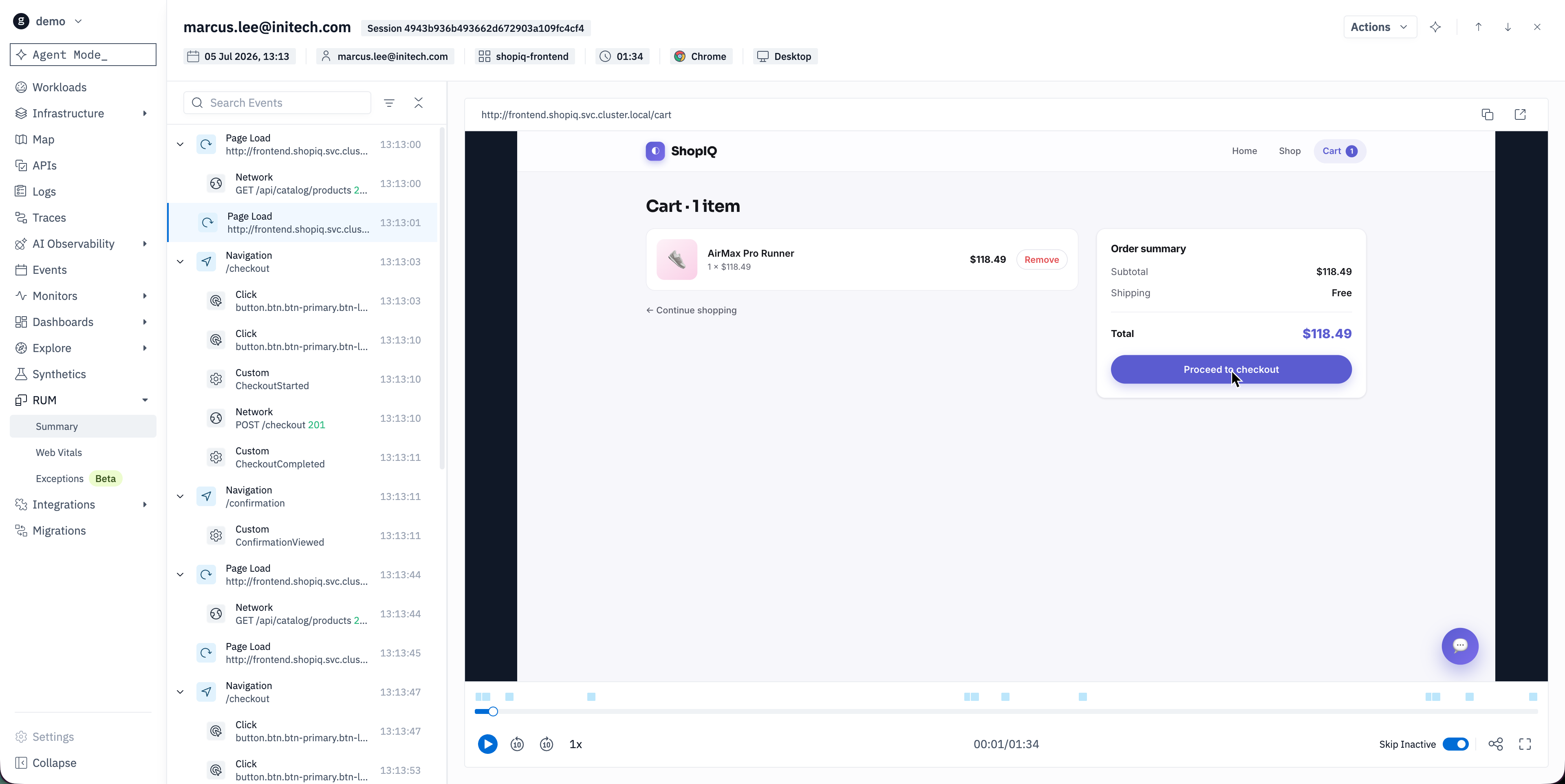
Select a session to open the session drawer. Use the Up and Down arrow keys, or **Previous** and **Next**, to move between sessions.
The header shows the user's email, or **Anonymous**, and the session ID. Tags below it summarize the session, such as the start time, user, service, duration, and release ID. Web sessions also show the browser and whether the device is a desktop or a mobile device. Mobile sessions show the OS and version and the device model, and show the app version when the app sets no release ID.
From the header you can also:
* Open **Actions** and choose **View related sessions** (same user), **Open in Logs**, or **Open in Traces**. The logs and traces views open filtered to this session.
* Select **Explain with AI** to have the Agent summarize the session. See [Explain a session with AI](#explain-a-session-with-ai).
{% tabs %}
{% tab title="Web" %}
A web session with its recording and event timeline
{% endtab %}
{% tab title="Mobile" %}
A mobile session's event timeline
{% endtab %}
{% endtabs %}
### Event timeline
The timeline lists the session's events in order, each with its timestamp and context such as the URL or screen and the stack trace. Use **Search Events** to search them, and **Filter events** to show only some types. Each navigation row names the page or screen the user moved to and groups the events that happened on it.
| Event type | Platform | What it records |
| ---------- | -------- | ----------------------------------------------------------------------------------------------------------------------------------- |
| Navigation | Both | A move to a new page or screen. |
| Page Load | Web | A page load. |
| Click | Web | A click on an element. |
| Type | Web | Typing in a field. Consecutive key presses merge into one row that shows the field and the typed text, masked for sensitive fields. |
| Select | Web | Text selected in an input or text area. |
| Tap | Mobile | A tap on an element, labeled with what the user touched. |
| Long Press | Mobile | A long press on an element. |
| Swipe | Mobile | A swipe, labeled with its direction. |
| Scroll | Mobile | A scroll, labeled with its direction. |
| Input | Mobile | An edit to a text field. The text itself isn't captured. |
| Network | Both | An HTTP request and its status code. **Open trace** opens the request's trace. |
| Logs | Both | A log line from the app. **Open logs** opens it in the logs view. |
| Error | Both | An exception. On mobile, this includes crashes and hangs. |
| Custom | Both | A custom event, with its name and value. |
Other rows have **Show details** to see the event's attributes. Web Vitals, app start, and frame metrics don't appear in the timeline. See them on the [Vitals](https://docs.groundcover.com/investigate/real-user-monitoring-rum/vitals.md) page.
### Session replay
Web sessions can include a recording of what the user saw. When a session has one, the drawer plays it next to the timeline, and you can move from an event to the matching moment in the replay. Recording doesn't start on its own: your application starts it with [`startReplayRecording()`](https://docs.groundcover.com/getting-started/installation-and-updating/connect-rum/browser.md#session-replay).
Mobile sessions have no replay. Use the event timeline instead.
## Explain a session with AI
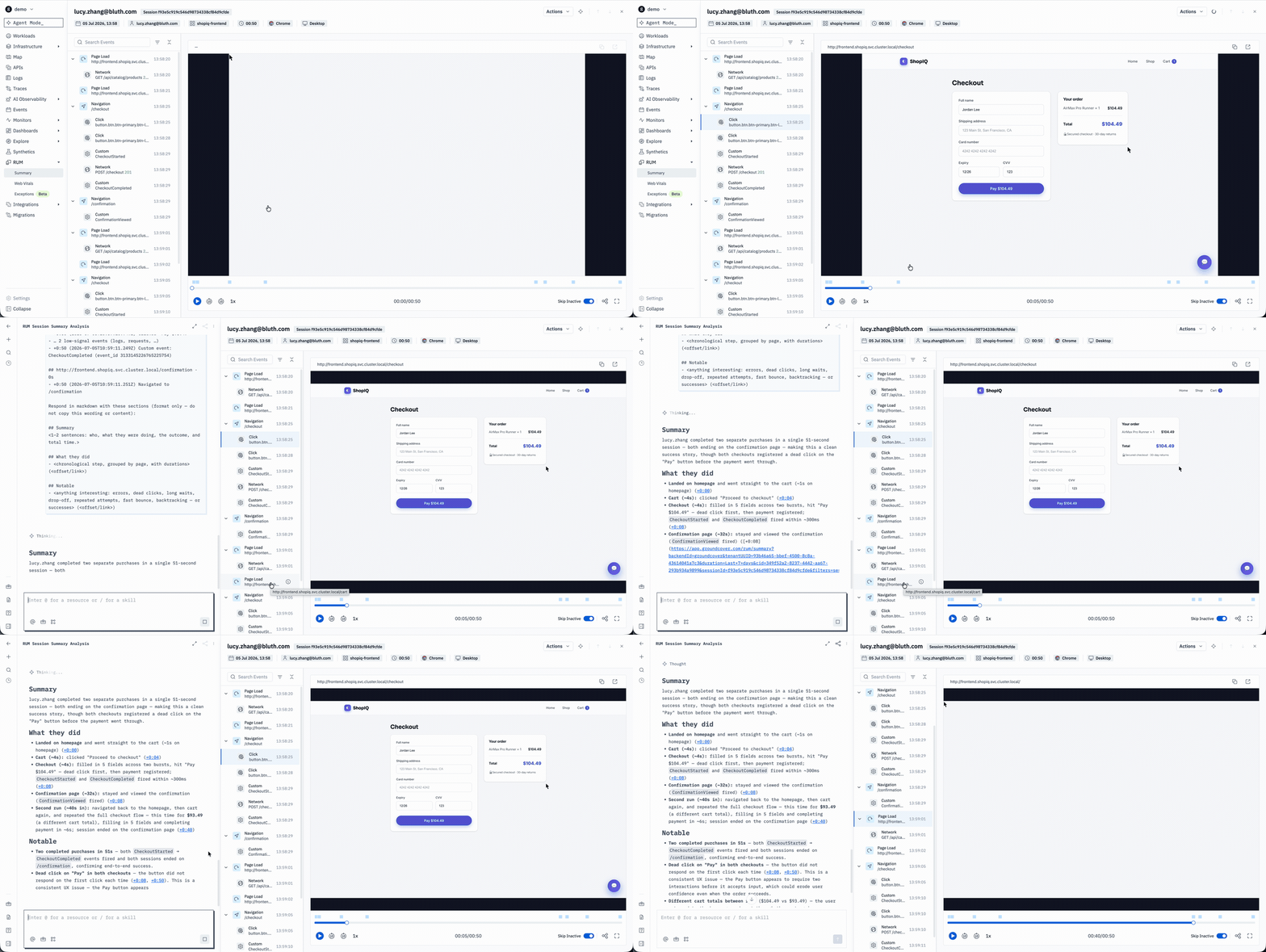
groundcover can analyze a session for you using [Agent Mode](https://docs.groundcover.com/automate/agent-mode.md). In the session drawer, select **Explain with AI** to get a natural-language summary of what the user did, where they hit friction, and which events matter most.
The Agent analyzes the session's events, and the recording when a web session has one. You can understand a user journey without replaying it end to end, and jump straight to the moments that led to an error or a performance issue.
The Agent summarizing a session
## Related
* [Exceptions](https://docs.groundcover.com/investigate/real-user-monitoring-rum/exceptions.md): errors, crashes, and hangs, grouped across sessions.
* [Querying RUM data](https://docs.groundcover.com/investigate/real-user-monitoring-rum/querying.md): query session events with gcQL.
* [Connect RUM](https://docs.groundcover.com/getting-started/installation-and-updating/connect-rum.md): set up the browser and mobile SDKs.
---
# Agent Instructions
This documentation is published with GitBook. GitBook is the documentation platform designed so that both humans and AI agents can read, navigate, and reason over technical content effectively. Learn more at gitbook.com.
## Querying This Documentation
If you need additional information that is not directly available in this page, you can query the documentation by asking a question.
Perform an HTTP GET request on the following URL with the `ask` and `goal` query parameters:
```
GET https://docs.groundcover.com/investigate/real-user-monitoring-rum/sessions.md?ask=&goal=
```
`ask` is the immediate question: it should be specific, self-contained, and written in natural language.
`goal` is what the user is ultimately trying to achieve, the reason they need the answer. Sharing it helps GitBook give you a better, more relevant answer. A goal is most helpful when it describes the outcome the user wants rather than restating the question. For example, with `ask=how do I create an API token`, a goal like `automate deployments from our CI pipeline` lets GitBook tailor the answer to that use case.
The response will contain a direct answer to the question and relevant excerpts and sources from the documentation.
Use this mechanism when the answer is not explicitly present in the current page, you need clarification or additional context, or you want to retrieve related documentation sections.