> For the complete documentation index, see [llms.txt](https://docs.groundcover.com/llms.txt). Markdown versions of documentation pages are available by appending `.md` to page URLs; this page is available as [Markdown](https://docs.groundcover.com/automate/connectors.md).
# Connectors
Connectors let individual users link their external tool accounts to groundcover, enabling Agent Mode to take actions on their behalf
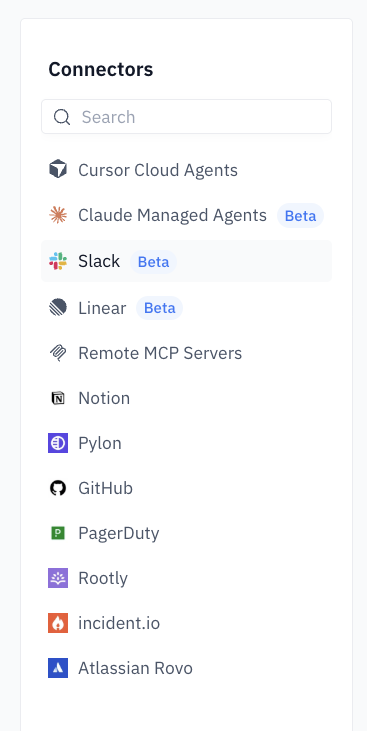
Connectors link groundcover to external tools such as GitHub, Notion, PagerDuty, Claude Managed Agents, Linear, Slack, and Cursor. Depending on the connector, they can power organization-wide notification workflows, personal [Agent Mode](/automate/agent-mode.md) tools, or both.
Notion, Pylon, GitHub, PagerDuty, Rootly, incident.io, and Atlassian Rovo use their providers' MCP services behind first-class connector cards. Select the card directly; you do not need to configure an MCP server URL. Claude Managed Agents connects directly to Anthropic instead of using MCP.
{% hint style="info" %}
The PagerDuty, Rootly, and incident.io connector cards give **Agent Mode** access to those services. To send monitor notifications, configure a [PagerDuty](/automate/connected-apps/pagerduty.md), [Rootly](/automate/connected-apps/incident.io-1.md), or [incident.io](/automate/connected-apps/incident.io.md) Destination instead.
{% endhint %}
## Connectors vs Destinations
groundcover has two types of external integrations that serve different purposes:
| Aspect | Connectors | Destinations |
| ------------------ | ------------------------------------------------------------------------- | ---------------------------------------------------------------- |
| **Scope** | Personal connections, sometimes backed by an organization-managed app | Organization, admins configure shared integrations |
| **Purpose** | Enable Agent Mode to take actions in external tools on behalf of the user | Send notifications and alerts to external services |
| **Authentication** | User authorizes their account with OAuth or provides personal credentials | Admin configures org-wide credentials or authorizes a shared app |
| **Used by** | groundcover Agent Mode during conversations | Notification Routes, Monitors, and Workflows |
| **Setup location** | **Integrations → Connectors** | **Integrations → Destinations** |
In short: **Destinations** push alerts *out* of groundcover at the org level, while **Connectors** let Agent Mode reach *into* external tools at the user level.
Some integrations support both roles. Setting up [Linear](/automate/connectors/linear.md) or [Slack](/automate/connectors/slack.md) under **Org Connectors** creates the organization-level connection used by monitor workflows, while **My Connections** lets each user authorize the same tool for Agent Mode.
## How It Works
Connectors use a two-tier model:
1. **Organization setup**: A workspace admin enables or configures a connector for the organization. Depending on the connector, the admin may authorize with OAuth, supply an API token, or register an OAuth application and enter its Client ID and Client Secret.
2. **User connection**: Individual users authorize their account with OAuth or provide a personal token. Agent Mode uses the connection to act on the user's behalf.
{% hint style="info" %}
Admin permissions are required to enable or disable a connector for the organization.\
Any workspace member with [Agent Mode access](/automate/agent-mode/privacy-and-security.md) can connect their own account once the connector is enabled.
{% endhint %}
Connectors are available as first-class cards under Integrations → Connectors.
## Multiple Instances per Connector
Every connector supports **multiple instances**, so you can connect the same connector type to more than one external account or environment. Each instance is identified by a unique **Connector Name** that you choose at setup time.
Common use cases:
* **Slack** — connect more than one Slack workspace by adding a separate Slack App per workspace (e.g., `groundcover Prod`, `groundcover Staging`). When [selecting Slack channels](/automate/connectors/slack.md#selecting-slack-channels-in-notification-routes), each Slack App appears separately in the destination picker so you can route alerts to the right workspace.
* **Linear** — connect multiple Linear workspaces by creating a separate OAuth application and organization connector for each workspace. Each connector appears separately when creating issues or configuring Notification Routes.
* **Cursor** — connect multiple Cursor API keys (e.g., one per repository owner or environment). When you invoke Cursor through Agent Mode, you'll be asked which credential to use if more than one is connected.
* **Remote MCP Servers** — allowlist as many MCP servers as you need; each one is added independently and exposes its own set of tools.
* **Other connectors** — the same model applies to all current and future connector types.
Constraints:
* The **Connector Name** must be unique across all Destinations in the workspace — including other connector types and Destinations configured under **Integrations → Destinations**. For example, you cannot reuse `prod-alerts` as both a Slack App connector name and a PagerDuty Destination name.
* For connectors bound to an external workspace (such as Slack), each instance is bound to one workspace; you cannot reuse the same workspace across two instances.
* For personal credentials (such as Cursor), there is no upper limit on how many you can add to your account.
## Available Connectors
| Connector | Description |
| -------------------------------------------------------------------------- | ----------------------------------------------------------------------------------- |
| [**Slack**](/automate/connectors/slack.md) | Integrate with Slack for monitor notifications and agent interactions via @mentions |
| [**Linear**](/automate/connectors/linear.md) | Create and manage Linear issues from monitors, Notification Routes, and Agent Mode |
| [**Cursor Cloud Agents**](/automate/connectors/cursor.md) | Run Cursor's cloud coding agent on your repositories directly from Agent Mode |
| [**Claude Managed Agents**](/automate/connectors/claude-managed-agents.md) | Run coding tasks using a Claude agent and environment configured in Anthropic |
| [**Notion**](/automate/connectors/notion.md) | Search workspace knowledge and publish investigation findings |
| [**Pylon**](/automate/connectors/pylon.md) | Investigate customer issues and take support actions |
| [**GitHub**](/automate/connectors/github.md) | Investigate code and manage issues, pull requests, and development work |
| [**PagerDuty**](/automate/connectors/pagerduty.md) | Investigate and manage incidents, services, schedules, and on-call work |
| [**Rootly**](/automate/connectors/rootly.md) | Investigate incidents and coordinate response and follow-up work |
| [**incident.io**](/automate/connectors/incident-io.md) | Analyze operations and manage incidents, escalations, and follow-ups |
| [**Atlassian Rovo**](/automate/connectors/atlassian-rovo.md) | Read and update Jira issues and Confluence knowledge |
| [**Remote MCP Servers**](/automate/connectors/mcp.md) | Allowlist custom MCP servers with token or OAuth authentication |
## Managing Connectors
The Connectors page has two tabs:
* **My Connections** — where any user can link their personal account for an enabled connector
* **Org Connectors** — where admins enable connector types and configure org-level credentials (e.g., the Slack App)
### For Admins
Go to **Integrations → Connectors** and open the **Org Connectors** tab to enable or disable connector types for your organization, and to configure org-level credentials where required (e.g., the Slack App). Disabling a connector does not delete existing user credentials, but prevents them from being used until re-enabled.
### For Users
Once a connector is enabled by an admin:
1. Go to **Integrations → Connectors → My Connections**
2. Select the connector you want to set up
3. Authorize your account or provide your credentials, then configure any defaults
4. When you ask Agent Mode to use a specific tool (e.g., "use Cursor to fix the failing test"), it will use your connected credentials to perform the action
You can update your credentials, change configuration, or disconnect at any time from the same page.
## Next Steps
* [Slack](/automate/connectors/slack.md): Set up the Slack App connector and link your personal account
* [@groundcover Agent in Slack](/automate/connectors/slack/slack-agent.md): Use the groundcover Agent directly from Slack via @mentions
* [Linear](/automate/connectors/linear.md): Connect a Linear workspace for monitor issues, Notification Routes, and Agent Mode
* [Cursor Cloud Agents](/automate/connectors/cursor.md): Set up and use the Cursor connector with Agent Mode
* [Claude Managed Agents](/automate/connectors/claude-managed-agents.md): Connect a Claude agent, environment, vaults, and memory store
* [Notion](/automate/connectors/notion.md), [Pylon](/automate/connectors/pylon.md), [GitHub](/automate/connectors/github.md), [PagerDuty](/automate/connectors/pagerduty.md), [Rootly](/automate/connectors/rootly.md), [incident.io](/automate/connectors/incident-io.md), and [Atlassian Rovo](/automate/connectors/atlassian-rovo.md): Set up each first-class connector and explore Agent Mode examples
* [Remote MCP Servers](/automate/connectors/mcp.md): Allowlist custom MCP servers with token or OAuth authentication and manage tool restrictions
---
# Agent Instructions
This documentation is published with GitBook. GitBook is the documentation platform designed so that both humans and AI agents can read, navigate, and reason over technical content effectively. Learn more at gitbook.com.
## Querying This Documentation
If you need additional information that is not directly available in this page, you can query the documentation by asking a question.
Perform an HTTP GET request on the following URL with the `ask` and `goal` query parameters:
```
GET https://docs.groundcover.com/automate/connectors.md?ask=&goal=
```
`ask` is the immediate question: it should be specific, self-contained, and written in natural language.
`goal` is what the user is ultimately trying to achieve, the reason they need the answer. Sharing it helps GitBook give you a better, more relevant answer. A goal is most helpful when it describes the outcome the user wants rather than restating the question. For example, with `ask=how do I create an API token`, a goal like `automate deployments from our CI pipeline` lets GitBook tailor the answer to that use case.
The response will contain a direct answer to the question and relevant excerpts and sources from the documentation.
Use this mechanism when the answer is not explicitly present in the current page, you need clarification or additional context, or you want to retrieve related documentation sections.