> For the complete documentation index, see [llms.txt](https://docs.groundcover.com/llms.txt). Markdown versions of documentation pages are available by appending `.md` to page URLs; this page is available as [Markdown](https://docs.groundcover.com/~/revisions/1mY0CQn12Klyi0QiItHv/getting-started/login-and-create-a-workspace.md).
# Login and Create a Workspace
Get started with groundcover
{% hint style="success" %}
This is the first step to start with groundcover for all types of plans :rocket:
{% endhint %}
### Sign up to groundcover
The first thing you need to do to start using groundcover is [sign up](https://app.groundcover.com/) using your email address (no credit card required for the free tier account). Signing up is only possible using a computer and will not be possible using a mobile phone or tablet. It is highly recommended you use your corporate email address, as it will make it easier to use other features such as inviting your colleagues to your workspace. However, signing up using Gmail, Outlook or any other public domains is also possible.
### Workspace Selection
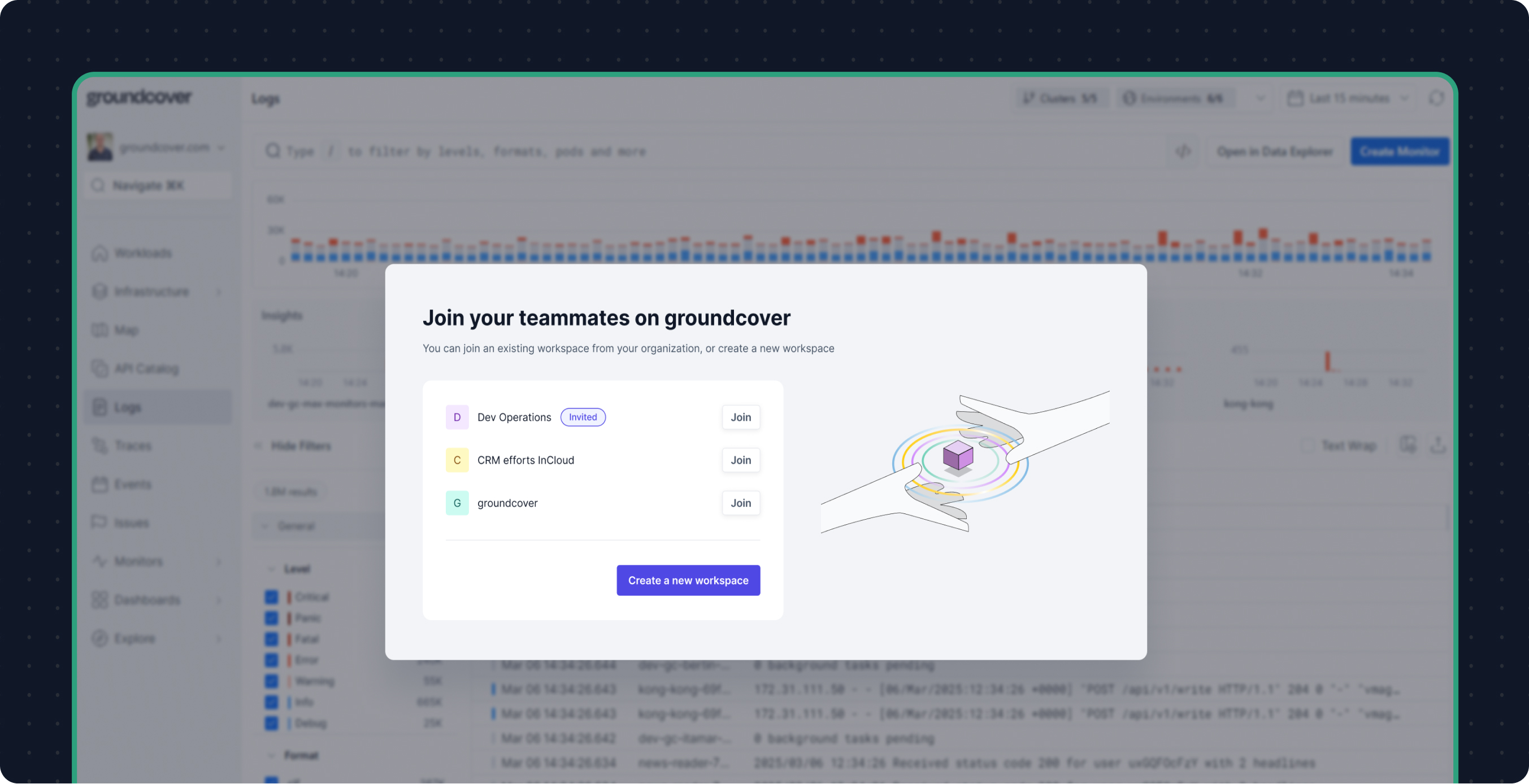
When [signing in](https://app.groundcover.com) to groundcover for the first time, the platform automatically detects your organization based on the domain you used to sign in. If your organization already has existing workspaces available, the workspace selection screen will be displayed, where you can choose which of the existing workspaces you would like to join, or if you want to create a new workspace.
Available workspaces will be displayed **only** if either of the following applies:
* You have been invited to join existing workspaces and haven't joined them yet
* Someone has previously created a workspace that has auto-join enabled for the email domain that you used to sign in (applicable for corporate email domains only)
### To join an existing workspace:
1. Click the **Join** button next to the desired workspace
2. You will be added as a user to that workspace with the user privileges that were assigned by default or those that were assigned to you specifically when the invite was sent.
3. You will automatically be redirected to that workspace.
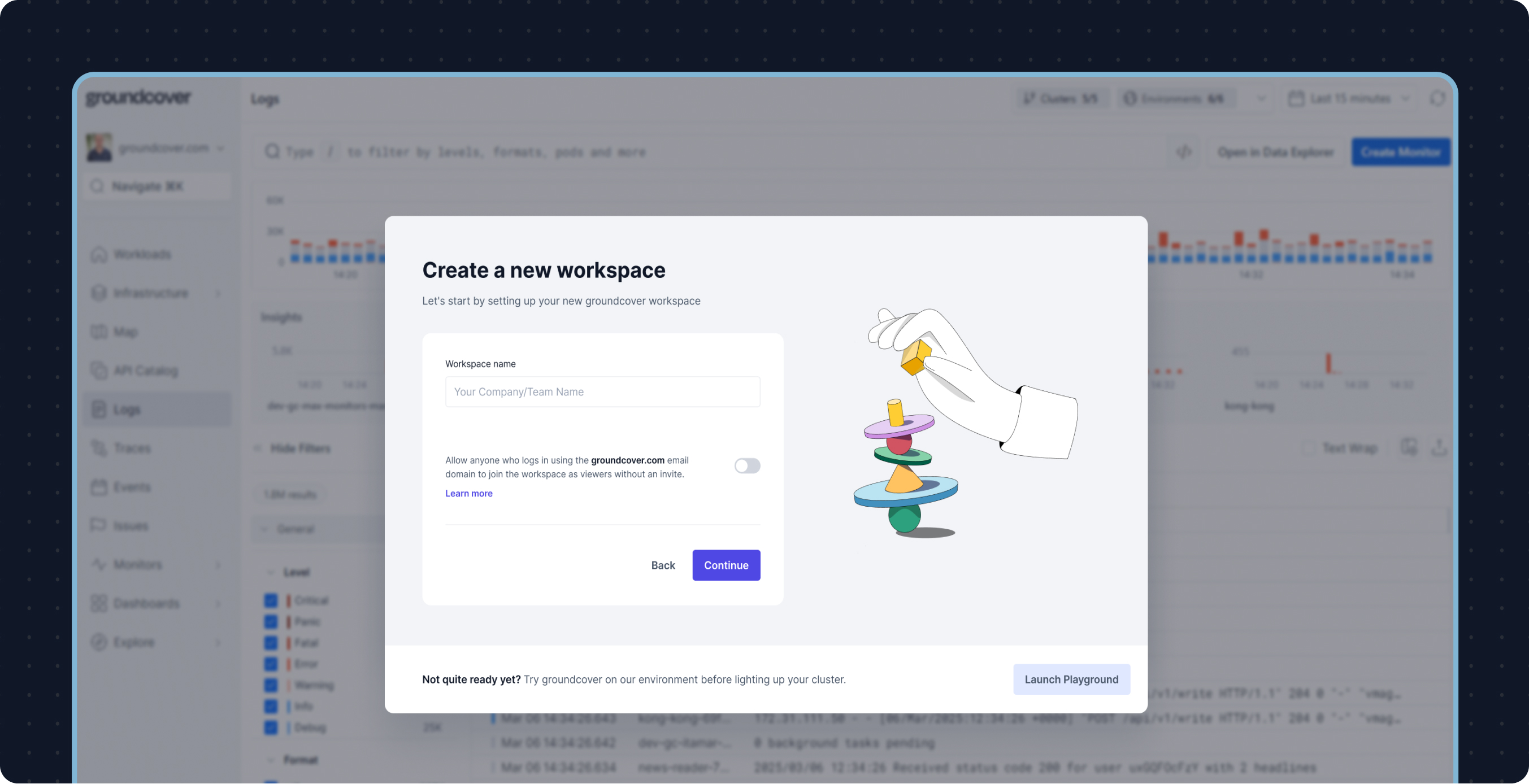
### To create a new workspace:
{% hint style="info" %}
You will only see the option to create a new workspace if you are the first person from your organization to join groundcover.
{% endhint %}
1. Click the **Create a new workspace** button
2. Specify a workspace name
3. Choose whether to enable auto-join (those settings can be changed later)
4. Click continue
### Workspace Auto-joining
Workspace owners and admins can allow teammates that log in with the same email domain as them to join the Workspace they created automatically, without an admin approval. This capability is called "Auto-join". It is disabled by default, but can be switched on during the workspace set up process, or any time in the workspace settings.
{% hint style="warning" %}
If you logged in with a **public email domain** (Gmail, Yahoo, Proton, etc.) and are creating a new Workspace, you will not be able to switch on Auto-join for that Workspace.
{% endhint %}
---
# Agent Instructions
This documentation is published with GitBook. GitBook is the documentation platform designed so that both humans and AI agents can read, navigate, and reason over technical content effectively. Learn more at gitbook.com.
## Querying This Documentation
If you need additional information that is not directly available in this page, you can query the documentation by asking a question.
Perform an HTTP GET request on the following URL with the `ask` and `goal` query parameters:
```
GET https://docs.groundcover.com/~/revisions/1mY0CQn12Klyi0QiItHv/getting-started/login-and-create-a-workspace.md?ask=&goal=
```
`ask` is the immediate question: it should be specific, self-contained, and written in natural language.
`goal` is what the user is ultimately trying to achieve, the reason they need the answer. Sharing it helps GitBook give you a better, more relevant answer. A goal is most helpful when it describes the outcome the user wants rather than restating the question. For example, with `ask=how do I create an API token`, a goal like `automate deployments from our CI pipeline` lets GitBook tailor the answer to that use case.
The response will contain a direct answer to the question and relevant excerpts and sources from the documentation.
Use this mechanism when the answer is not explicitly present in the current page, you need clarification or additional context, or you want to retrieve related documentation sections.