# Search & Filter

### Search and filter

To help you slice and dice your data, you can use our dynamic filters (left panel) and/or our powerful querying capabilities:

1. **Query Builder** - Supports key:value pairs, as well as free text search. The Query Builder works in tandem with our filters.
2. **Advanced Query** - Currently available only for our Logs section, enables more complex queries, included nested condition support and explicit use of a variety of operators.

To further focus your results, you can also restrict the results to specific time windows using the time picker on the upper right of the screen.

## Query Builder

The Query Builder is the default search option wherever search is available. Supporting advanced autocomplete of keys, values, and our discovery mode that across values in your data to teach users the data model.

The following syntaxes are available for you to use in Query Builder:

<table><thead><tr><th width="154">Syntax</th><th width="243">Description</th><th width="224">Examples</th><th>Sections</th></tr></thead><tbody><tr><td><code>key:value</code></td><td><p><strong>Search attributes</strong>:</p><p>Both groundcover built-ins custom attributes.</p><p>Use <code>*</code> for wildcard search.<br><br><em>Note: Multiple filters for the same key act as 'OR' conditions, whereas multiple filters for different keys act as 'AND' conditions.</em></p></td><td><code>namespace:prod-us</code><br><code>namespace:prod-*</code></td><td>Logs<br>Traces<br>K8s Events<br>API Catalog<br>Issues</td></tr><tr><td><code>term</code></td><td><strong>Free text:</strong><br>Search for single-word terms.<br><br><em>Tip: Expand your search results by using wildcards.</em></td><td><code>Exception</code><br><code>DivisionBy*</code></td><td>Logs</td></tr><tr><td><code>"term"</code></td><td><strong>Phrase Search (case-insensitive):</strong><br>Enclose terms within double quotes to find results containing the exact phrase.<br><br><em>Note: Using double quotes does not work with <code>*</code> wildcards.</em></td><td><code>"search term"</code></td><td>Logs</td></tr><tr><td><code>-key:value</code></td><td><strong>Exclude:</strong><br>Specify terms or filters to omit from your search; applies to each distinct search.</td><td><code>-key:value</code><br><code>-term</code><br><code>-"search term"</code></td><td>Logs<br>Traces<br>K8s Events<br>API Catalog<br>Issues</td></tr><tr><td><code>*:value</code></td><td><p><strong>Search all attributes:</strong></p><p>Search any attribute for a value, you can use double quotes for exact match and wildcards.</p></td><td><code>*:error</code><br><code>*:"POST /api/search"</code><br><code>*:erro*</code></td><td>Logs<br>Traces<br>Issues</td></tr></tbody></table>

### How to use filters

Filters are very easy to add and remove, using the filters menu on the left bar. You can combine filters with the Query Builder, and filters applied using the left menu will also be added to the Query Builder in text format.

<div align="left"><figure><img src="/files/kGRFIScPZa4dBRWJSGzL" alt="" width="299"><figcaption></figcaption></figure></div>

* **Select / deselect a single filter** - click on the checkbox on the left of the filter. (You can also deselect a filter by clicking the 'x' next to the text format of the filter on the search bar).
* **Deselect all but one filter** (within a filter category, such as 'Level' or 'Format') - hover over the filter you want to leave on, then click on "ONLY".
  * You can switch between filters you want to leave on by hovering on another filter and clicking "ONLY" again.
  * To turn all other filters in that filter category back on, hover over the filter again and click "ALL".
* **Clear all filters within a filters category** - click on the funnel icon next to the category name.
* **Clear all filters currently applied** - click on the funnel icon next to the number of results.

## Advanced Query

Advanced Query is currently available only in the Logs section.

{% hint style="info" %}
Filters are not available in Advanced Query mode.
{% endhint %}

The following syntaxes are available for you to use in Advanced Query:

<table><thead><tr><th width="154">Syntax</th><th width="270">Description</th><th width="224">Examples</th><th>Sections</th></tr></thead><tbody><tr><td><code>key:value</code></td><td><strong>Filters:</strong> Use golden filters to narrow down your search.<br><br><em>Note: Multiple filters for the same key act as 'OR' conditions, whereas multiple filters for different keys act as 'AND' conditions.</em></td><td><code>level:error</code></td><td>Logs</td></tr><tr><td><code>@key:value</code></td><td><strong>Attributes:</strong> Search within the content of attributes.<br><br><em>Note: Multiple filters for the same key act as 'OR' conditions, whereas multiple filters for different keys act as 'AND' conditions.</em></td><td><code>@transaction.id:123</code></td><td>Logs</td></tr><tr><td><code>term</code></td><td><strong>Free text (exact match):</strong> Search for single-word terms.<br><br><em>Tip: Expand your search results by using wildcards.</em></td><td><code>term</code></td><td>Logs</td></tr><tr><td><code>" "</code></td><td><strong>Phrase Search (case-insensitive):</strong> Enclose terms within double quotes to find results containing the exact phrase.</td><td><code>"search term"</code></td><td>Logs</td></tr><tr><td><code>~</code></td><td><strong>Wildcard</strong>: Search for partial matches.<br><br><em>Note: Wildcards must be added before the search term or value, and will always be treated as a partial match search.</em></td><td><p><code>key:~val</code></p><p><code>@key:~val</code></p><p><code>~term</code></p><p><code>~"search phrase"</code></p></td><td>Logs</td></tr><tr><td><code>NOT</code><br><code>!</code></td><td><strong>Exclude:</strong> Specify terms or filters to omit from your search; applies to each distinct search.</td><td><code>!key:value</code><br><code>NOT @key:value</code><br><code>NOT term</code><br><code>!"search term"</code></td><td>Logs</td></tr><tr><td><code>key:""</code></td><td>Identify cases where key does not exist or is empty</td><td><code>pid:""</code></td><td>Logs</td></tr><tr><td><code>key:=#</code><br><code>key:>#</code><br><code>key:&#x3C;#</code></td><td>Search for key:pair values where the value is equal, greater than, or smaller than, a specified number.</td><td><code>threadPriority:>5</code></td><td>Logs</td></tr><tr><td><code>key:(val1 or val2)</code></td><td>Search for key:value pairs using a list of values.</td><td><code>level:(error or info)</code></td><td>Logs</td></tr><tr><td><code>query1 or query2</code></td><td>Use OR operator to display matches on either queries</td><td><code>level:error or format:json</code></td><td>Logs</td></tr><tr><td><code>query1 and query2</code></td><td>Use AND operator to display matches on both queries</td><td><code>level:error and format:json</code></td><td>Logs</td></tr><tr><td>"Search term prefix"*</td><td>Exact phrase prefix search</td><td><code>"Error 1064 (42"*</code></td><td>Logs</td></tr></tbody></table>

#### Additional examples of how to use Advanced Query mode:

Find all logs with level 'error' or 'warning', in 'json' or 'logfmt' format, where the status code is 500 or 503, the request path contains '/api/v1/', and exclude logs where the user agent is 'vmagent' or 'curl':

<pre class="language-lua"><code class="lang-lua"><strong>level:(error or warning) format:(json or logfmt) status_code:(500 or 503) @request.path:~"/api/v1/" NOT user_agent:(vmagent or curl)
</strong></code></pre>

Find logs where the bytes transferred are greater than 10000, the request method is POST, the host is not '10.1.11.65', and the namespace is 'production' or 'staging':

```sql
bytes:>10000 @request.method:POST NOT host:10.1.11.65 namespace:(production or staging)
```

Find logs from pods starting with 'backend-' in 'cluster-prod', where the level is 'error', the status code is not 200 or 204, and the request protocol is 'HTTP/2.0':

```vbnet
pod:~backend- cluster:cluster-prod level:error NOT status_code:(200 or 204) @request.protocol:"HTTP/2.0"
```

Find logs where the 'user\_agent' field is empty or does not exist, the request path starts with '/admin', and the status code is greater than 400:

```graphql
user_agent:"" @request.path:~"/admin" status_code:>400
```

Find logs in 'json' format from hosts starting with 'ip-10-1-', where the level is 'unknown', the container name contains 'redis', excluding logs with bytes transferred equal to 0:

```python
format:json host:~"ip-10-1-" level:unknown container:~redis NOT bytes:0
```

Find logs where the time is '18/Sep/2024:07:25:46 +0000', the request method is GET, the status code is less than 200 or greater than 299, and the host is '10.1.11.65':

```less
@time:"18/Sep/2024:07:25:46 +0000" @request.method:GET (status_code:<200 status_code:>299) host:10.1.11.65
```

Find logs where the level is 'info', the format is 'clf', the namespace is 'production', the pod name contains 'web', and exclude logs where the user agent is 'vmagent':

```vbnet
level:info format:clf namespace:production pod:~web NOT user_agent:vmagent
```

Find logs where the container name does not exist, the cluster is 'cluster-prod', the request path starts with '/internal', and the request protocol is 'HTTP/1.1':

```graphql
container:"" cluster:cluster-prod @request.path:~"/internal" @request.protocol:"HTTP/1.1"
```

Find logs where the bytes transferred are greater than 5000, the request method is PUT or DELETE, the status code is 403 or 404, and the host is not '10.1.11.65':

```sql
bytes:>5000 @request.method:(PUT or DELETE) status_code:(403 or 404) NOT host:10.1.11.65
```

Find logs where the format is 'unknown', the level is not 'error', the user agent is 'curl', and the pod name starts with 'test-':

```lua
format:unknown NOT level:error user_agent:curl pod:~test-
```

## Switching between Query Builder and Advanced Query modes

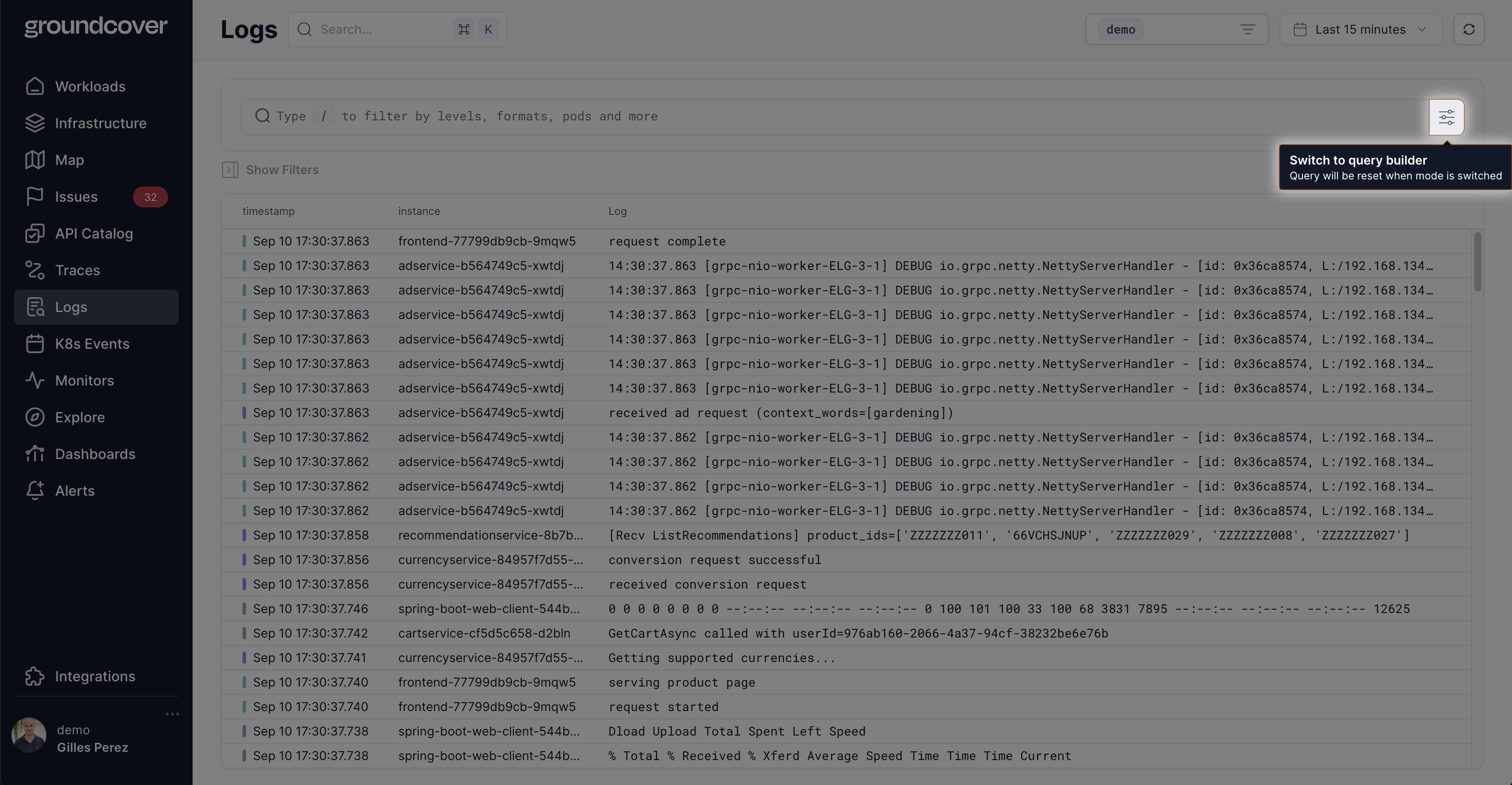
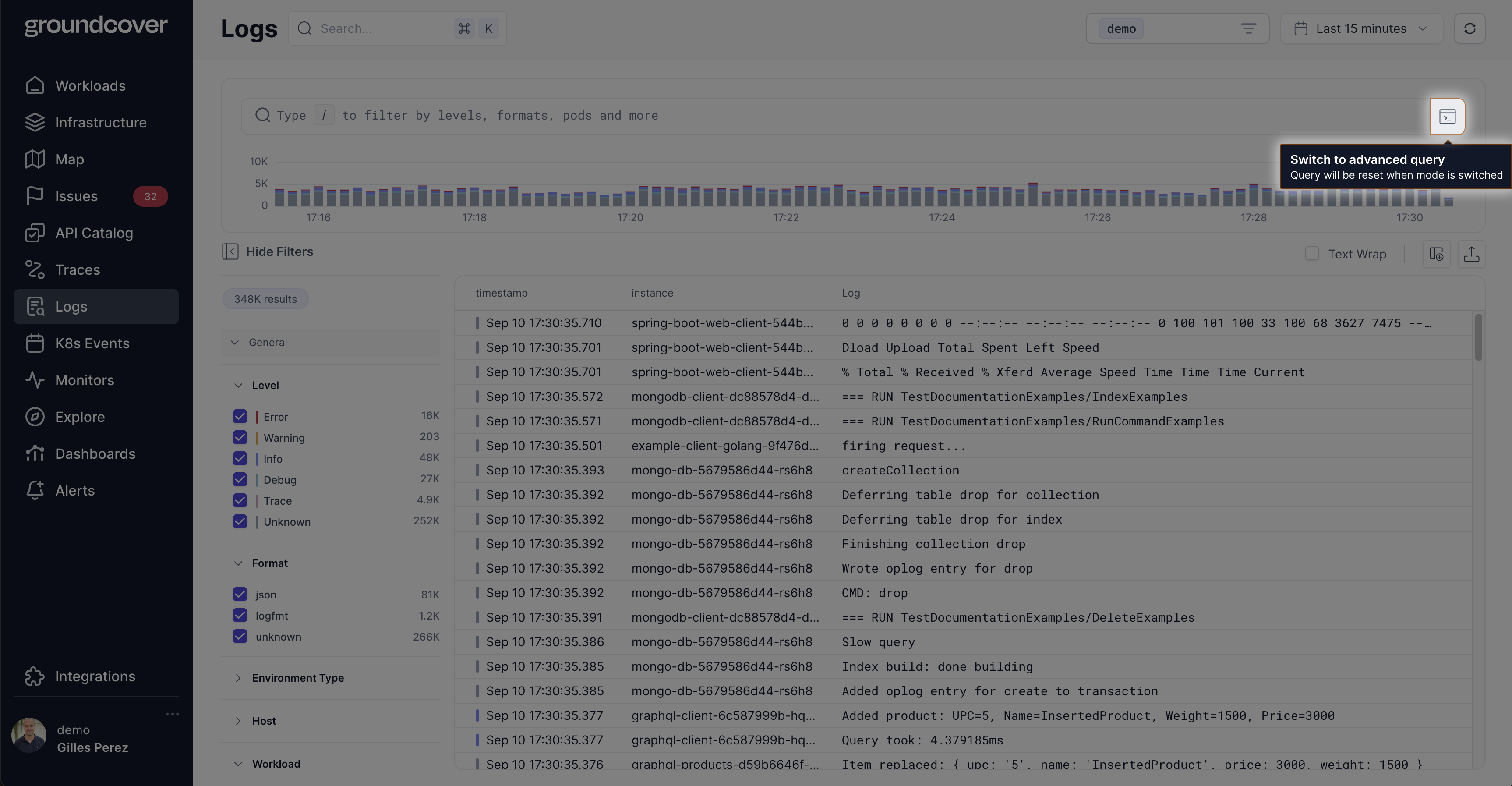
By default, the search bar will be displayed in Query Builder mode. Use the button on the right of the search bar to switch back and forth between the Query Builder and Advanced Query.

<figure><img src="/files/8Jyw6kqAlKKSagavIQZQ" alt=""><figcaption><p>Switch to Advanced Query mode</p></figcaption></figure>

<figure><img src="/files/7uy7t2mWBhcu05I0Xon9" alt=""><figcaption><p>Switch to Query Builder mode</p></figcaption></figure>


---

# Agent Instructions: Querying This Documentation

If you need additional information that is not directly available in this page, you can query the documentation dynamically by asking a question.

Perform an HTTP GET request on the current page URL with the `ask` query parameter:

```
GET https://docs.groundcover.com/~/revisions/1mY0CQn12Klyi0QiItHv/use-groundcover/search-and-filter.md?ask=<question>
```

The question should be specific, self-contained, and written in natural language.
The response will contain a direct answer to the question and relevant excerpts and sources from the documentation.

Use this mechanism when the answer is not explicitly present in the current page, you need clarification or additional context, or you want to retrieve related documentation sections.